
Managing your personal email and calendar integrations
Connect your Google Workspace or Outlook account to bont so the unified inbox and calendar light up — set up, manage and disconnect from one place.
Connecting your personal email and calendar is what powers bont's unified inbox, calendar overlay, email signatures and email-label sync. Without a connection, the inbox and calendar tabs stay empty. Personal integrations live in base bont — or, if your workspace doesn't have base bont, the same page is available inside pure bont.
Before you start
- A Google Workspace or Microsoft 365 / Outlook account you have permission to authorise.
- Pop-ups allowed for the bont domain — the OAuth handoff opens in a new window.
Step 1 · Open Personal Integrations
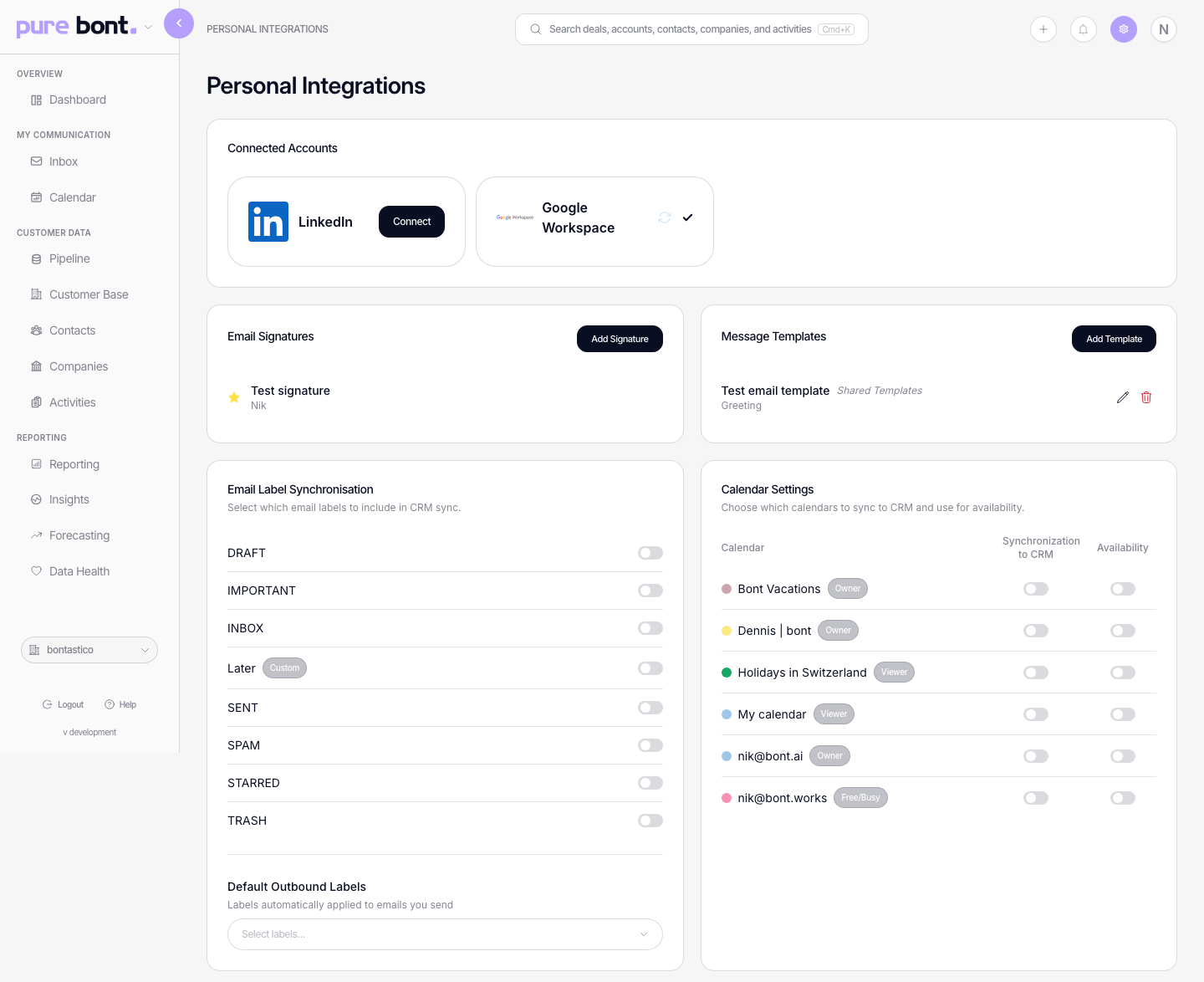
In base bont (or pure bont if base isn't enabled), open Settings → Integrations → Personal Integrations. The page lists the providers bont supports.
Step 2 · Connect a provider
Click Connect next to Google Workspace or Outlook. bont opens an OAuth window. Approve the requested scopes (read/send email, read/write calendar). When the window closes, the badge on the connection card flips to Connected.
Step 3 · Pick what to sync
Below the Connected Accounts section there are sub-panels for fine-tuning:
- Calendar Settings — set your working hours and which calendars to display.
- Email Label Synchronisation — choose which labels/folders bont mirrors into its inbox view (e.g. Inbox, Sent, custom labels).
- Add Signature — manage one or more email signatures that you can pick from when composing a reply.
The connected account card also shows the email address bont uses for your Inbox and Calendar. This integration address can differ from the email address on your bont user profile. Messages you compose in bont are sent from the connected integration account, and the Inbox and Calendar show data from that account.
Step 4 · Disconnect or reconnect
To disconnect, find the connected account card and click the Disconnect action. To reconnect after a token expiry, click Connect again — bont reuses the existing record rather than creating a duplicate.
Troubleshooting
I clicked Connect and nothing happened
Your browser likely blocked the OAuth pop-up. Allow pop-ups for the bont origin and retry. The console will log a pop-up-blocker warning if that's the cause.
Calendar or inbox is empty after connecting
First sync takes a minute or two for large mailboxes. Reload after a couple of minutes. If it stays empty, open Personal Integrations and confirm the badge says Connected; if it says Reconnect, the token expired and a fresh Connect click will fix it.
The Inbox shows a different address than my bont profile
This is expected when you connected another mailbox. Your profile email identifies your bont user; the address displayed on the connected account card is the mailbox used for email and calendar sync.
I can't see emails or calendar events older than a month
By design. The initial sync pulls roughly the last 30 days of email and the last 30 days of calendar events. Older mail stays in your provider; bont indexes what's recent because that's what drives the unified inbox and the activity timeline. The same window applies whether you're on Google Workspace or Microsoft 365 / Outlook. Email support@bont.ai if a longer back-fill is critical for an onboarding — we can sometimes extend it on request.
"This account is already connected to another bont workspace"
An email/calendar account can attach to one bont workspace at a time. Disconnect it from the other workspace first, then connect it here.