
Opening an organization profile
Find an organisation (company) in base bont and open its profile to see linked contacts, deals, activities and the parent/child hierarchy.
bont calls organisations Companies in the UI but the concept is the same — an entity representing a customer, partner or prospect. Open Companies from the left navigation under Customer Data to find one.
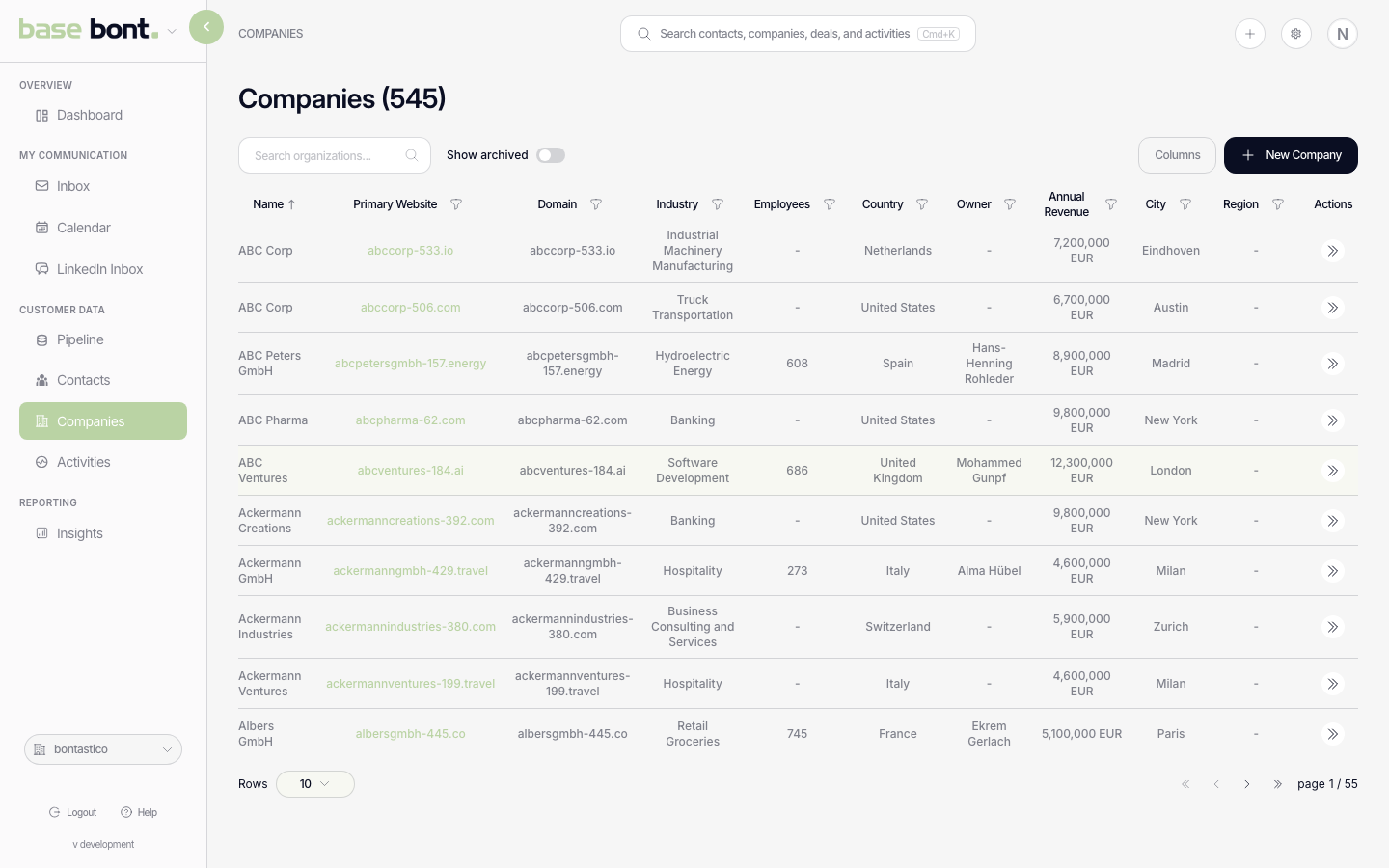
Find a company
- Search — the search box matches company name and primary domain.
- Show archived — toggle reveals soft-deleted entries.
- Column sort — click any column header.
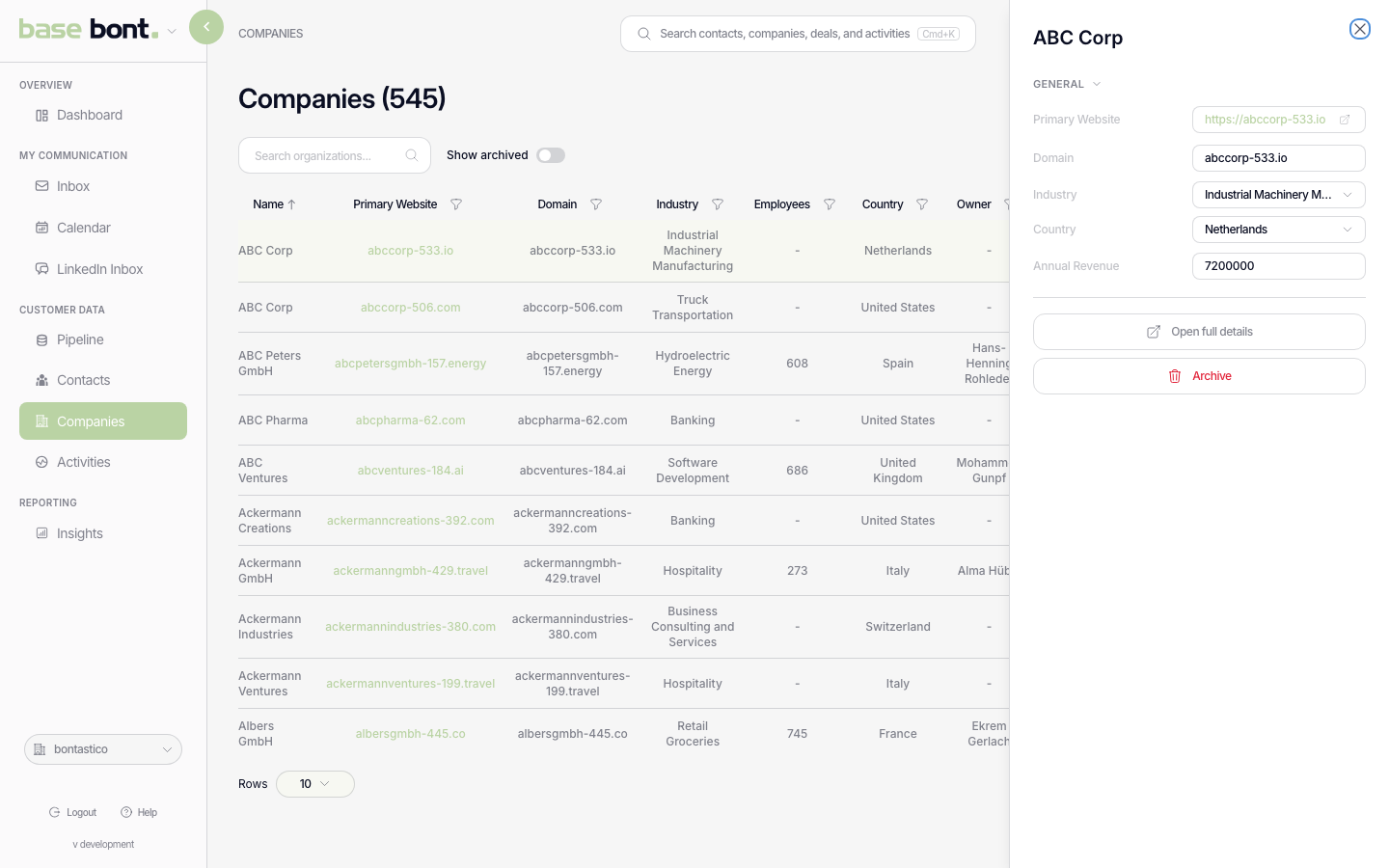
Clicking a row opens a quick-view drawer on the right. For the full profile,
follow the drawer's Open details link or navigate directly to
/base/{slug}/organizations/{id}.
What's on the detail page
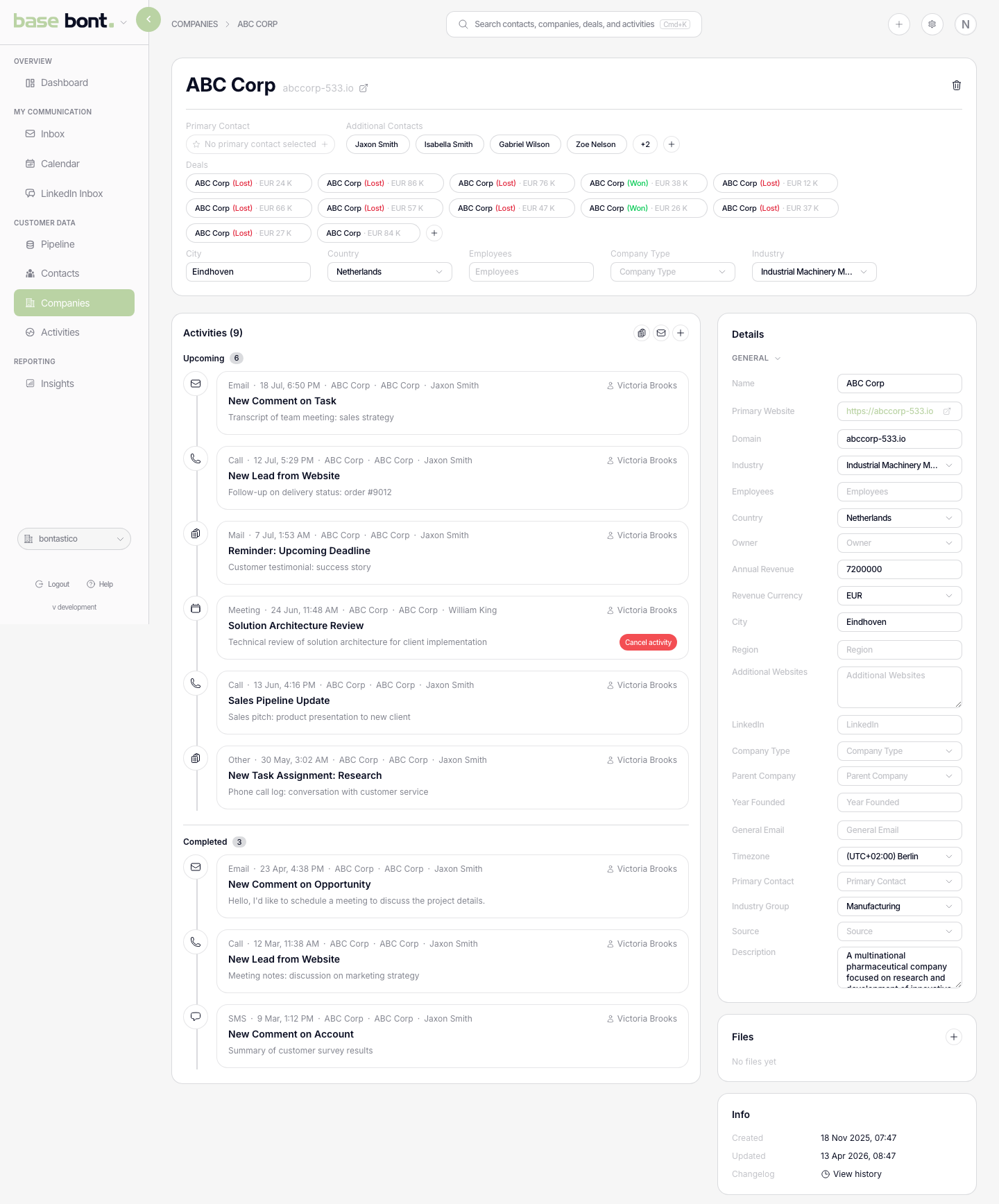
The detail page mirrors the contact profile layout: header at the top, activities timeline on the left, sidebar of related data on the right.
The quick view
Use the drawer for triage — the compact set of fields configured for quick view in CRM configuration, with inline-edit on the ones that are editable.
Header
- Name — inline-editable like contacts.
- Open website — quick link to the company's primary domain.
- Archive — soft-delete with confirmation.
- Merge — find another company, compare standard and custom fields, then choose which record remains primary before combining the duplicate.
- Parent breadcrumb — if this company is a child of another, the chain shows above the name. Click any ancestor to navigate up.
Sidebar
- Details — CRM fields (domain, size, industry, region, source).
- Primary Contact — pinned to the top so you always have someone to call.
- Child Companies — subsidiaries / dependent records.
- CRM Users — internal teammates that own or have touched the account.
- Billing — the company's structured billing address and VAT number (see below).
- Info — Source, Created, Updated and activity log.
Billing address
The Billing section holds a structured, multi-field billing address rather than a single free-text box:
- Recipient name
- Address line 1, Address line 2, Address line 3
- City
- Postal code
- Region
- Country
- VAT number
When nothing is on file yet, the section shows an Add billing address prompt; click it to fill the fields in.