
CRM configuration: Data Import
Import contacts, companies and deals from a connected CRM in bulk, watch progress, and review past import jobs.
Data Import is the bulk-load tool for pulling records out of a connected CRM into bont — useful during onboarding, when adding a new product, or after schema changes that need a re-pull. It's admin-only.
Before you start
- A connected CRM. See Connecting your CRM.
- Field mapping configured if your custom fields matter. See Mapping CRM fields to bont fields.
Open Data Import
Settings → App Settings → CRM configuration → Data Import.
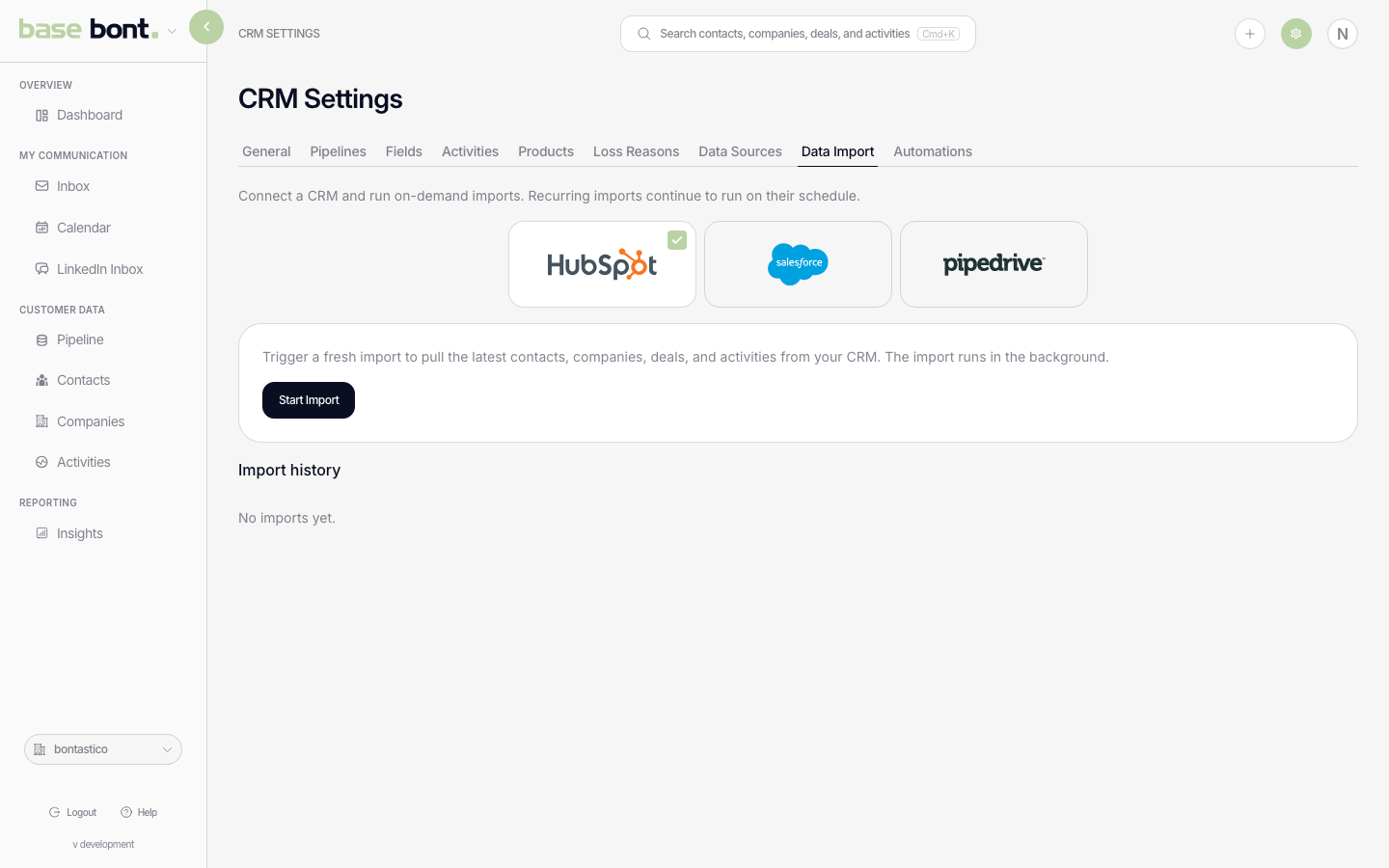
Running an import
- Pick the source CRM — usually pre-selected to the connected provider.
- Choose what to import — Contacts, Companies, Deals, Activities. Mix and match.
- (Optional) Date range — limit the pull to records modified within a window.
- Click Start import. The job runs asynchronously; close the page if you want — progress and final status appear in the history list.
Import history
Each row in the history table shows:
- Started at — when you kicked the import off.
- Source CRM — which provider supplied the data.
- Records pulled — count per object type.
- Status — Running, Completed, Failed, Cancelled.
- Open — click into the row for the detailed log (per-record errors, skipped rows, etc.).
Troubleshooting
- Some records skipped — usually a permission issue on the CRM side or a schema mismatch. Open the import detail for the per-record reason.
- Import keeps failing — see Troubleshooting CRM sync errors.
- I want to roll back — there's no UI rollback. Records imported in error can be bulk-archived from the relevant list (Contacts, Companies, Deals).