
CRM configuration: Fields
Add or edit the custom fields on contacts, companies, deals and activities — they appear on every detail page sidebar and in segment / forecast logic.
Custom fields let your CRM model the things bont doesn't ship out of the box — internal IDs, industry sub-categories, contract values, anything specific to your business. Fields configured here show up on every relevant detail page sidebar and become available to filters, segments, scoring and forecasting.
Open it
Settings → App Settings → CRM configuration → Fields.
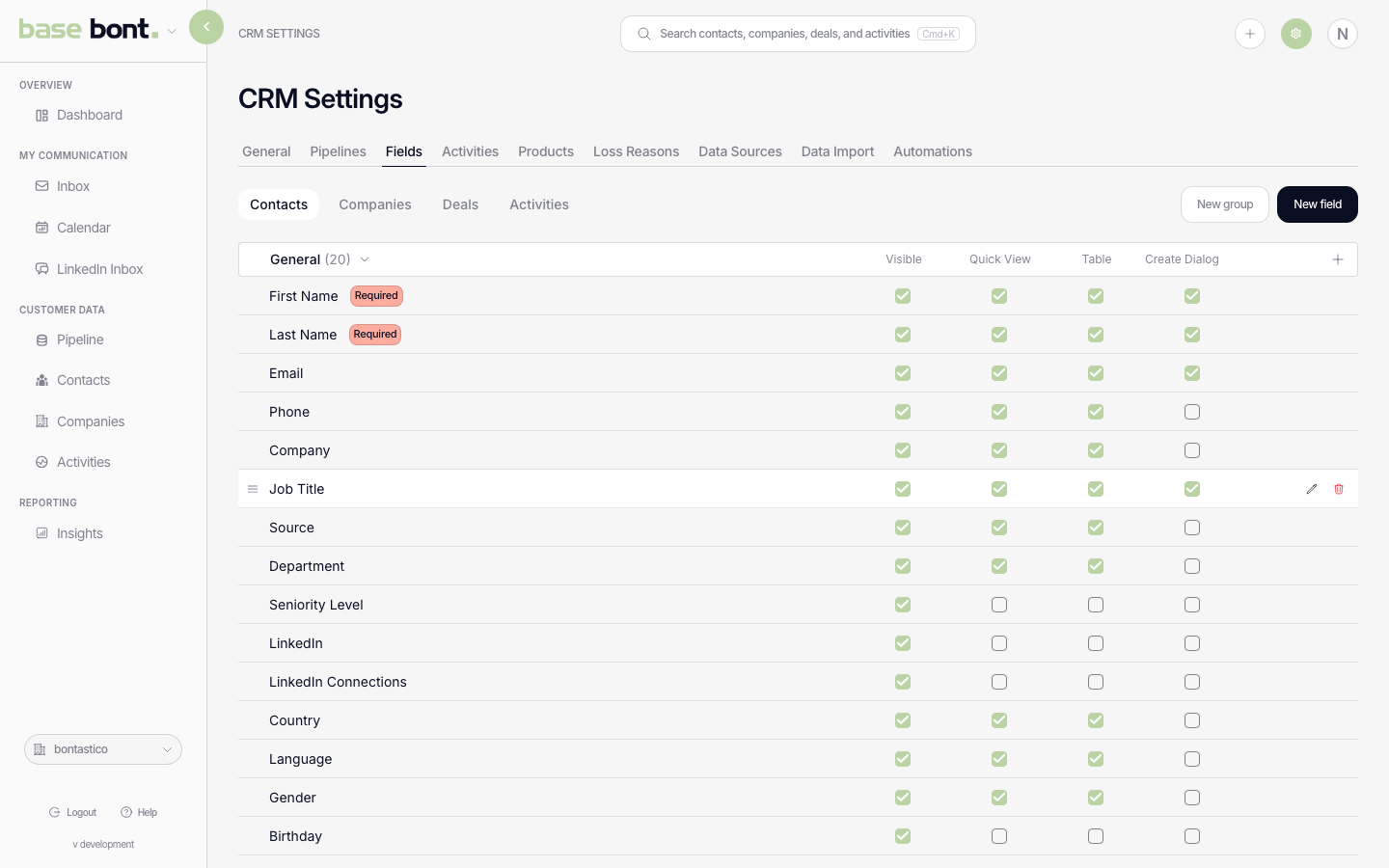
How it's organised
Fields are grouped by the object they belong to:
- Contacts — fields shown on contact profiles.
- Companies — fields on company profiles.
- Deals — fields on the deal sheet's Deal & Products card.
- Activities — extra fields on activity entries.
Adding a field
Click + Add field at the bottom of the relevant group. The dialog asks for:
- Name — what shows up on the sidebar label.
- Type — Text, Number, Date, Dropdown, Multiselect, Boolean, URL, Phone, Email.
- Options — for Dropdown / Multiselect, the picklist values.
- Required — toggle whether the field is required to save a record.
- CRM mapping — if a CRM is connected, point at the matching CRM field so syncs flow.
Editing or deleting a field
Click a field row to edit its name, options, or required flag. The trash icon archives the field — existing values remain on records but the field stops appearing on new ones. There's no hard delete in the UI; ask support@bont.ai if you need a wipe.
Grouping fields
Fields can be organised into groups that show up as labelled, collapsible sections on the detail page. Create a group, then assign fields to it — both your custom fields and bont's standard ones can sit in the same group. Drag to reorder fields within a group and groups within the object. On a detail page a group can be collapsed to keep long sidebars tidy.
Showing and hiding fields
Each field has visibility switches that control where it appears, so you can capture a value without cluttering every screen:
- In tables — available as a column in list / table views.
- In the create dialog — shown when creating a new record.
- Quick view — shown in the quick-view drawer.
- Hidden — kept on the record but off the detail layout.
Field order and subtype
- Order — drag fields to set the sequence they appear in, within their group.
- Subtype — for a Dropdown / Multiselect it's the list of options; for a relation field it's the record type it links to (a contact, company, deal, or communication).
Labels and localisation
A field's label can be localised, so each user sees it in their own interface language. Set the translations on the field and bont shows the right one automatically.