
Creating your bont sos. account
Step-by-step walkthrough for setting up a new bont sos. account, from the sign-up form through email verification, MFA and creating your first organisation.
A bont sos. account is your single sign-on across the bont product family — pure bont, base bont, pitch bont and funky bont. Sign up once with bont sos. and the same credentials get you into every product you have access to.
Before you start
- An email address you can receive mail at right now. We send a confirmation code to it.
- A password manager, ideally. Passwords must be at least 12 characters.
- A modern browser — see System requirements and supported browsers.
- Around two minutes.
Already invited to a workspace? Don't sign up from scratch — open your invite email and follow Accepting a workspace invitation. That flow attaches your new account to the correct organisation.
Step 1 · Open the Register tab
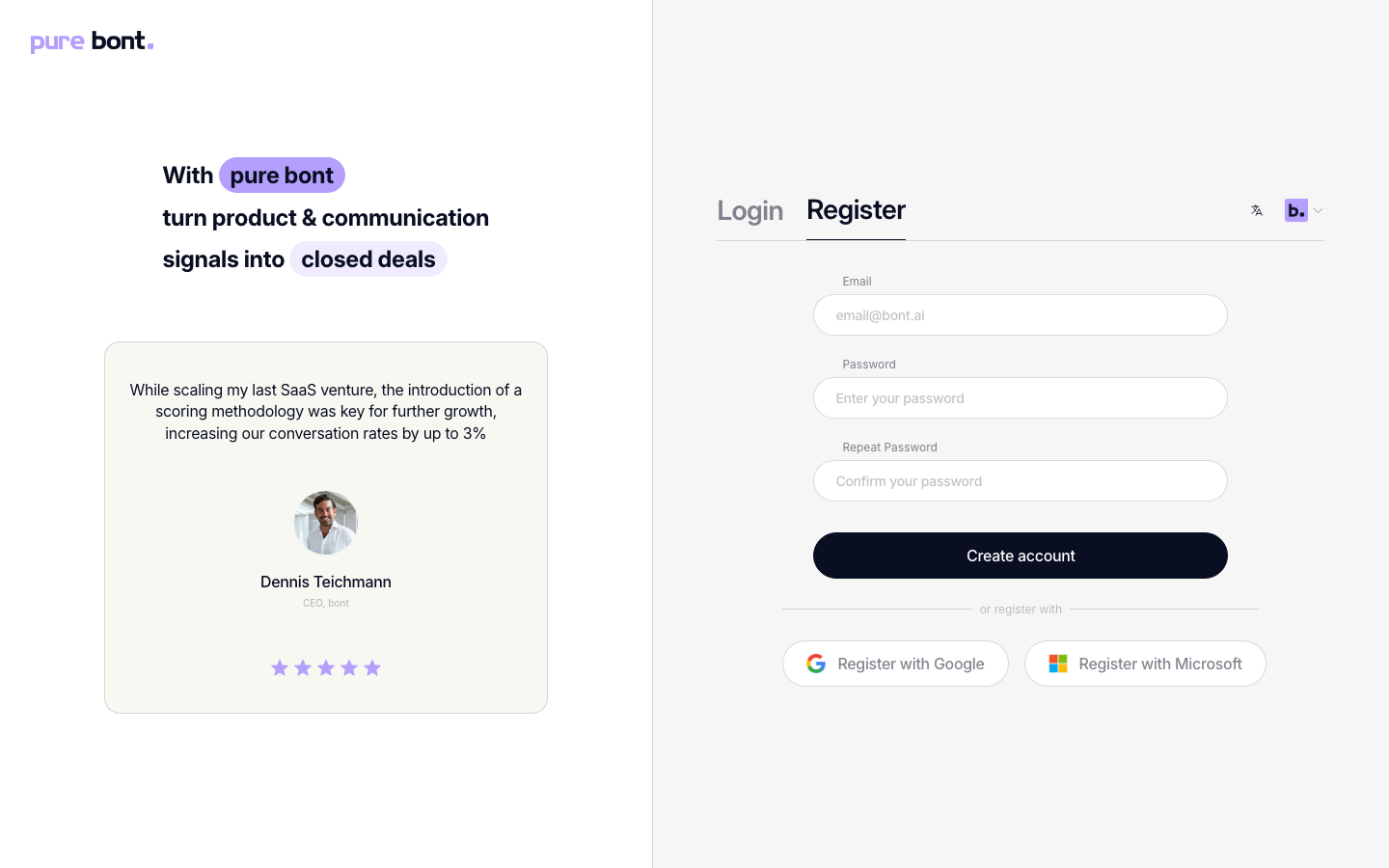
Open the bont App and choose Sign up, or open the sign-up form directly. The page shows two tabs — Login and Register. Stay on Register.
Step 2 · Enter your email and password
Fill in the three fields:
- Email — this becomes your login. Use an inbox you actually check; we send the confirmation code here in the next step.
- Password — at least 12 characters. A password manager is the easiest way to meet that without writing one down.
- Repeat Password — must match the password field exactly.
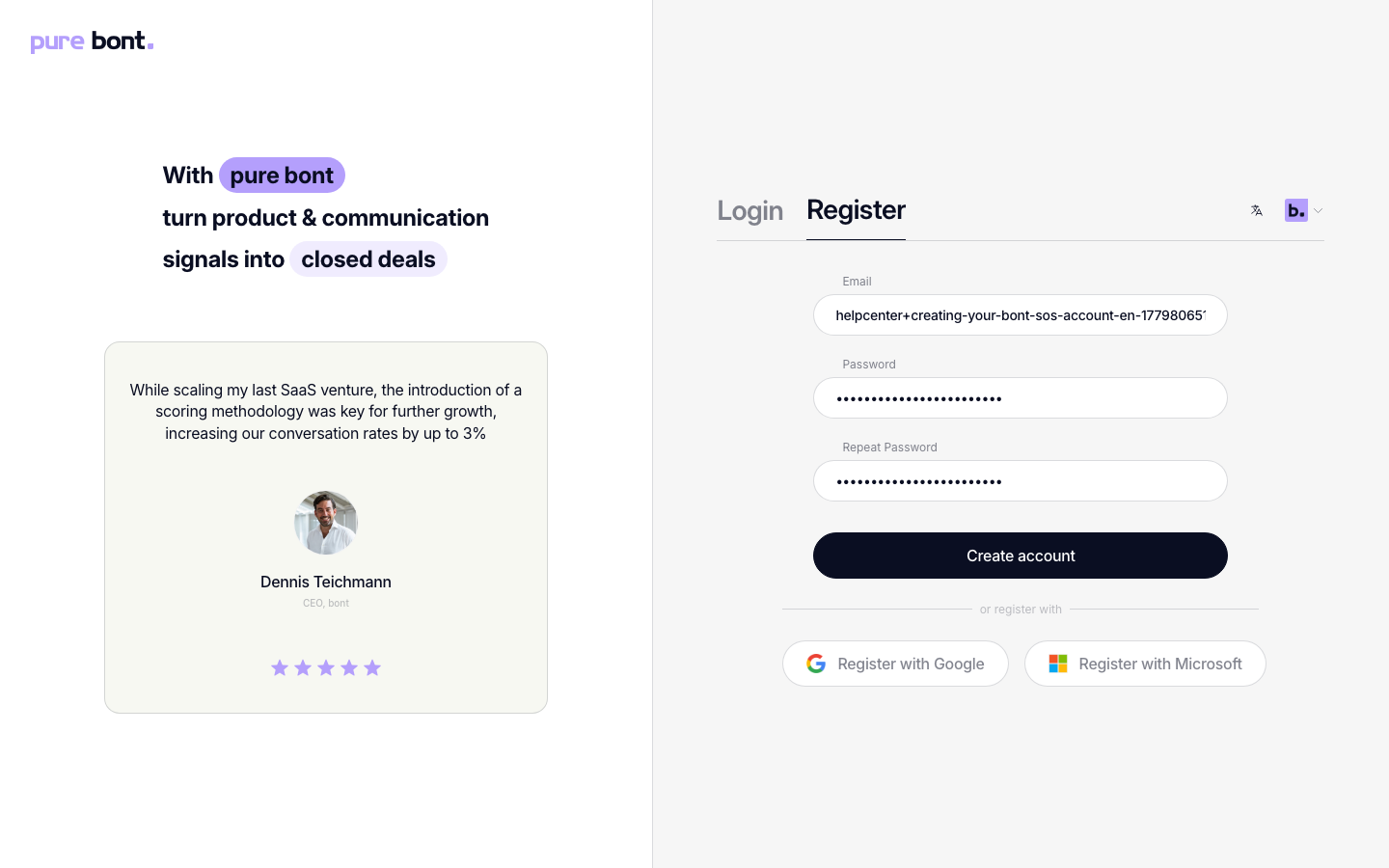
Prefer single sign-on? Use Register with Google or Register with Microsoft below the form instead — you can skip the rest of step 2 and step 3 in that case.
When the form looks right, click Create account.
Step 3 · Confirm your email
After submitting, the page swaps to a Check your email screen with a six-digit code entry. Open the confirmation email titled [bont] Welcome to bont and type the 6-digit code into that screen — it submits itself once the sixth digit is in, and you're signed in without entering your password again. The code is valid for 24 hours; the link at the bottom of the email works too and confirms the address in your browser.
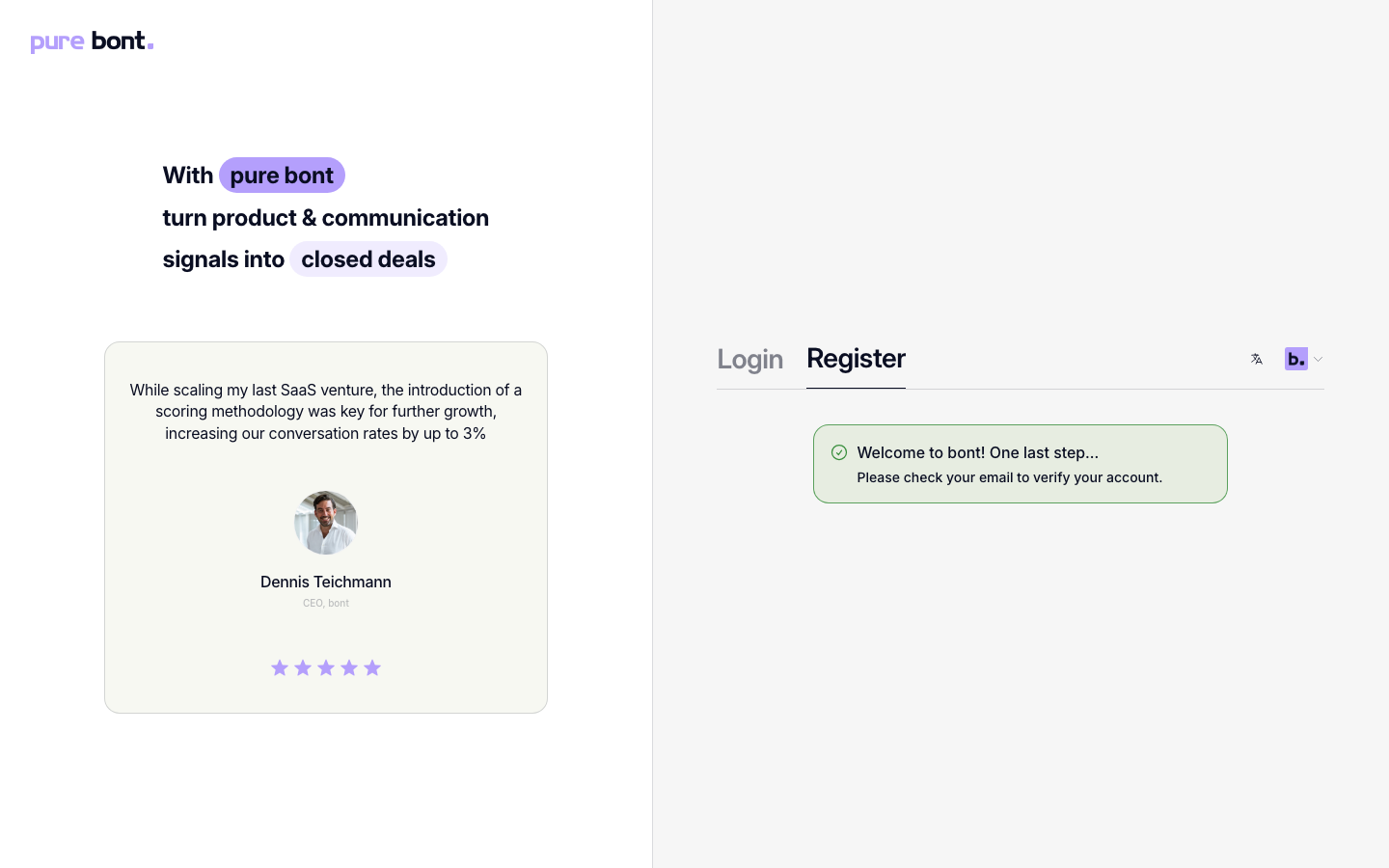
More detail and recovery options live in Verifying your email address.
Step 4 · Continue to workspace onboarding
Once your email is confirmed, bont signs you in and takes you to onboarding. Depending on whether you are creating a workspace or joining one, you can create or select the organisation and set up multi-factor authentication.
Workspace onboarding can configure multiple bont apps in one run, saves progress, can be resumed, and accepts an activation code. The exact steps depend on the apps in the workspace. Continue with Completing onboarding.
MFA remains strongly recommended. If you skip it during onboarding, add it later from your profile; see Setting up multi-factor authentication (MFA).
Next steps
- Logging in — sign back in after you log out.
- Completing onboarding — configure the apps in your workspace.
- Setting up multi-factor authentication (MFA) — if you skipped it during onboarding.
- Editing your profile — add a title and update your name.
- Inviting teammates — once your organisation exists, bring the rest of the team in.
Troubleshooting
The confirmation email never arrived
- Check spam and junk folders.
- Confirm the email address on the Register form was spelled correctly.
- On the code-entry screen, click Resend code (available again after 60 seconds). Already left the page? From the Login tab, attempt to log in — bont takes you to the code-entry page, where Send me a code sends a fresh one.
- Corporate mail filters sometimes hold messages. Ask IT to allow mail from
mail.bont.ai.
"Email already in use"
Someone — possibly you — already created an account with that address. Try resetting the password instead of signing up again.
Passwords don't match
The two password fields must be identical. If your password manager only auto-filled one of them, copy the password into both fields manually.
The MFA step isn't relevant for me
If you signed up with Register with Google or Register with Microsoft, MFA is handled by that identity provider and the step is skipped automatically.