
Viewing your calendar
Open the base bont Calendar to see meetings from your connected Google Workspace or Outlook calendar overlaid on the CRM context.
base bont's Calendar reads from the same calendar you connected under Personal Integrations. Events live where they always did (Google / Outlook); bont just gives you a CRM-aware view of them.
Open the Calendar
Click Calendar in the left navigation under My Communication.
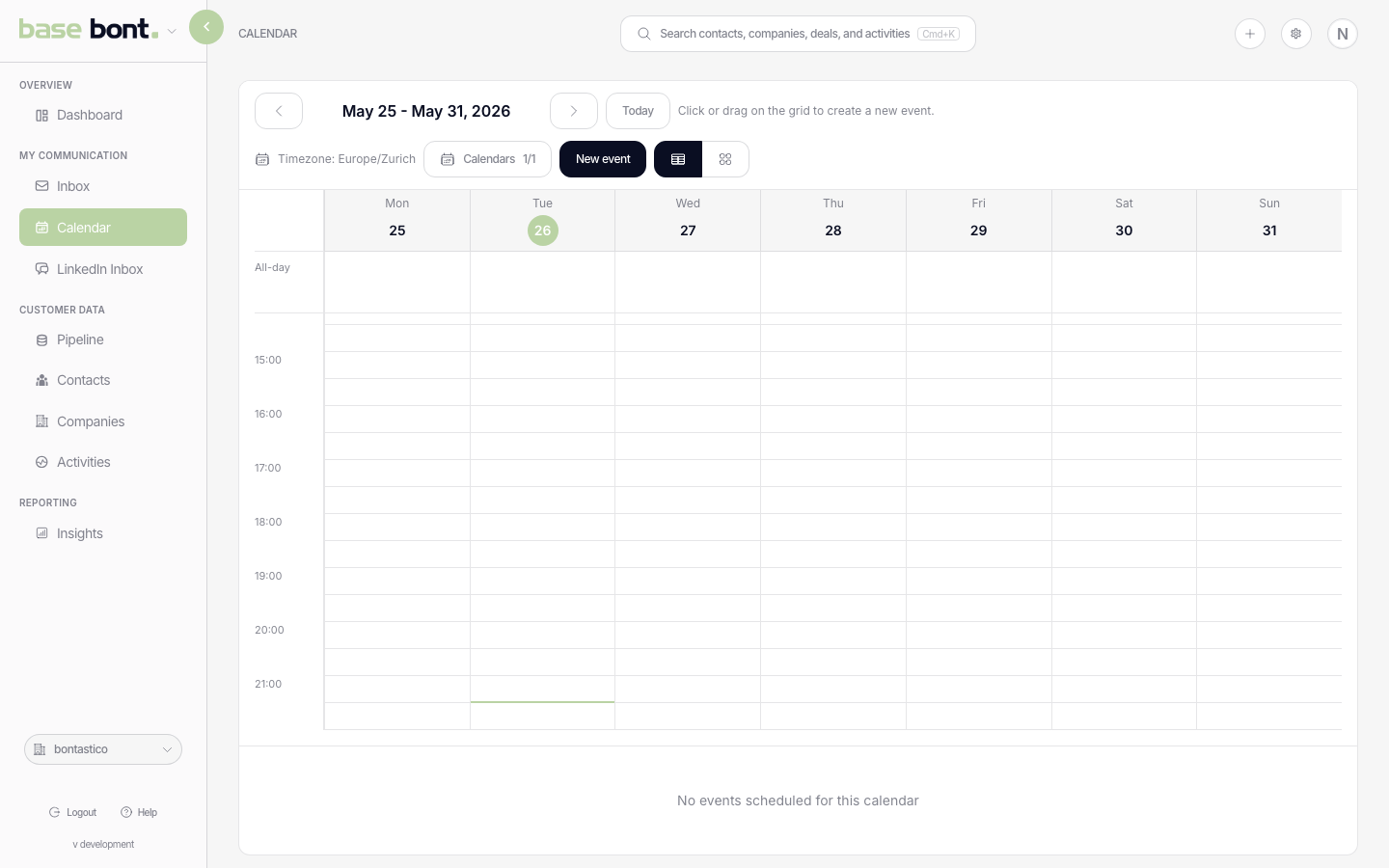
Switching views
- Day / Week / Month — buttons in the header. Defaults to Week.
- Calendars — open the side popover to pick which connected calendars are visible. Useful if you've shared multiple accounts.
Opening an event
Click any event to open the detail popover: title, time, location, attendees, conference link (if any), and edit/delete actions when the calendar is writable. Conference badges show whether Zoom, Google Meet or Teams is wired up.
Creating an event
Click an empty slot or drag a range. The create dialog opens with title, start/end (or all-day), location, attendee search, timezone, target calendar and description. Save — the event syncs to the underlying provider within seconds.
Tips
- Read-only calendars — shared "view only" calendars show events but disable create/edit. The dialog grays out actions when the active calendar is non-writable.
- Availability — calendars flagged as availability-source are used by scheduling features elsewhere in bont. Toggle that under Personal Integrations → Calendar Settings.
- No calendar visible? — confirm you connected at least one provider in Personal Integrations and that at least one calendar is set to visible in the side popover.