
Setting up multi-factor authentication (MFA)
Enable a second factor on your bont sos. account from profile settings — covers adding an authenticator, listing existing factors and removing one.
Multi-factor authentication makes it dramatically harder for someone to sign in as you, even if your password leaks. bont supports time-based one-time passwords (TOTP) from any standard authenticator app — Google Authenticator, 1Password, Authy and similar. If you set up MFA during the onboarding wizard, you're already done; this article covers enabling it from profile settings instead.
Don't confuse these authenticator codes with the 6-digit codes bont emails you during sign-up, email verification or password reset: email codes arrive on demand and stay valid for 24 hours, while authenticator codes regenerate every 30 seconds on your phone.
Before you start
- An authenticator app on your phone (Google Authenticator, 1Password, Authy, etc.).
- You're signed in to bont — see Logging in if you're not.
Step 1 · Open Profile settings
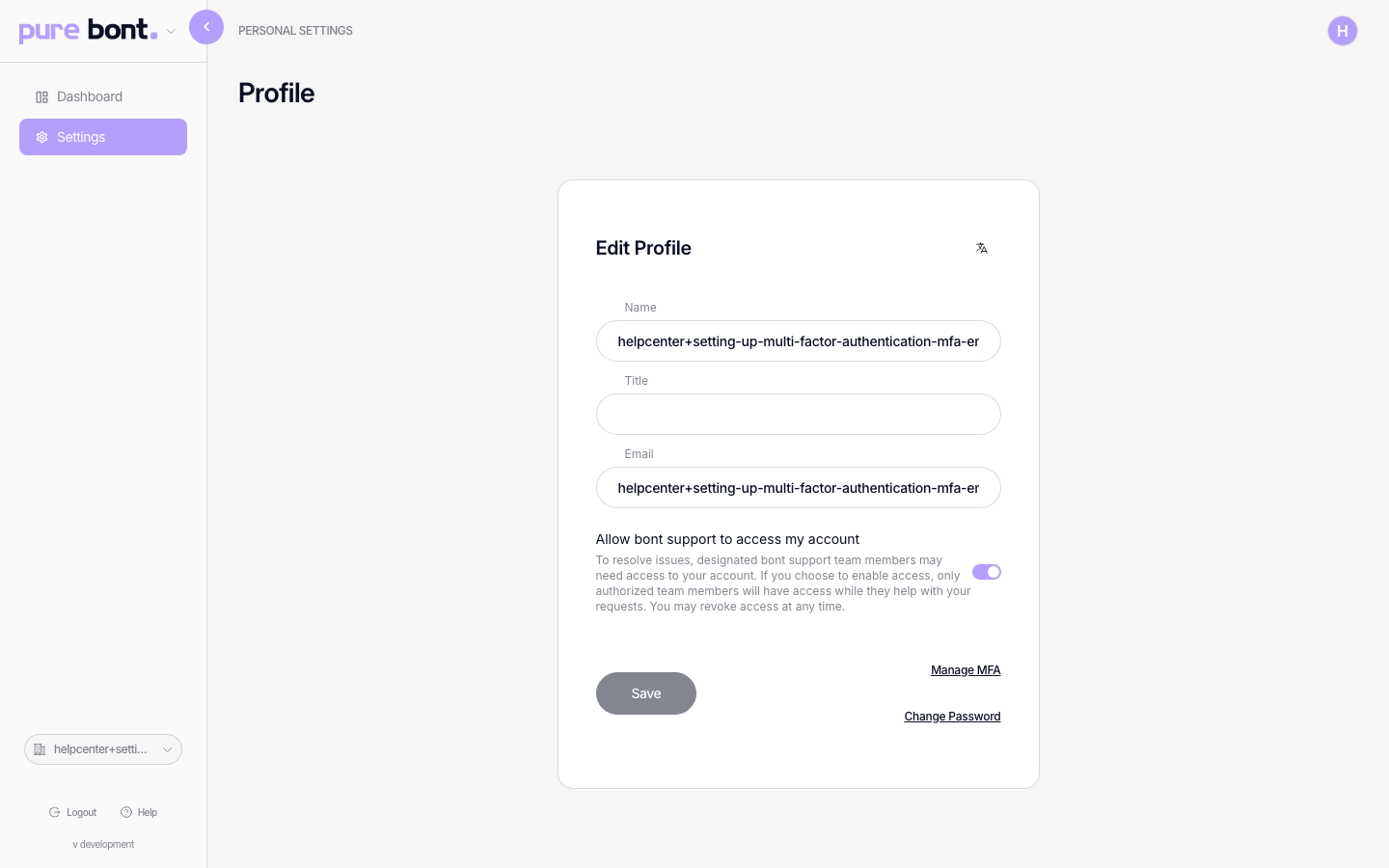
In the bont App, open the profile settings page. The page lists your account details with two security actions side by side: Manage MFA and Change Password.
Step 2 · Open the MFA manager
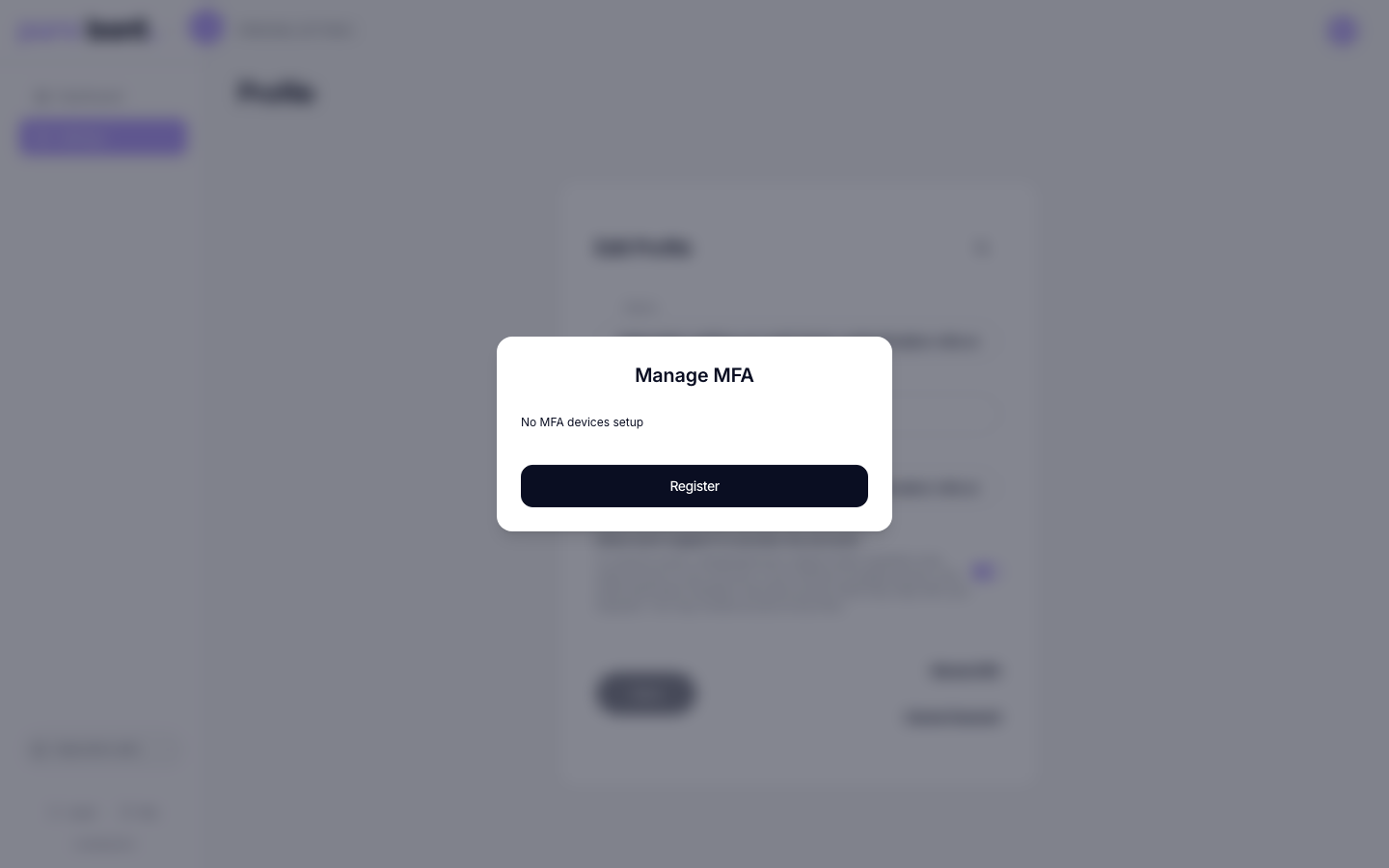
Click Manage MFA. A modal opens showing every MFA factor currently registered on your account — empty if you haven't added one yet — together with a Register button.
Step 3 · Register a new factor
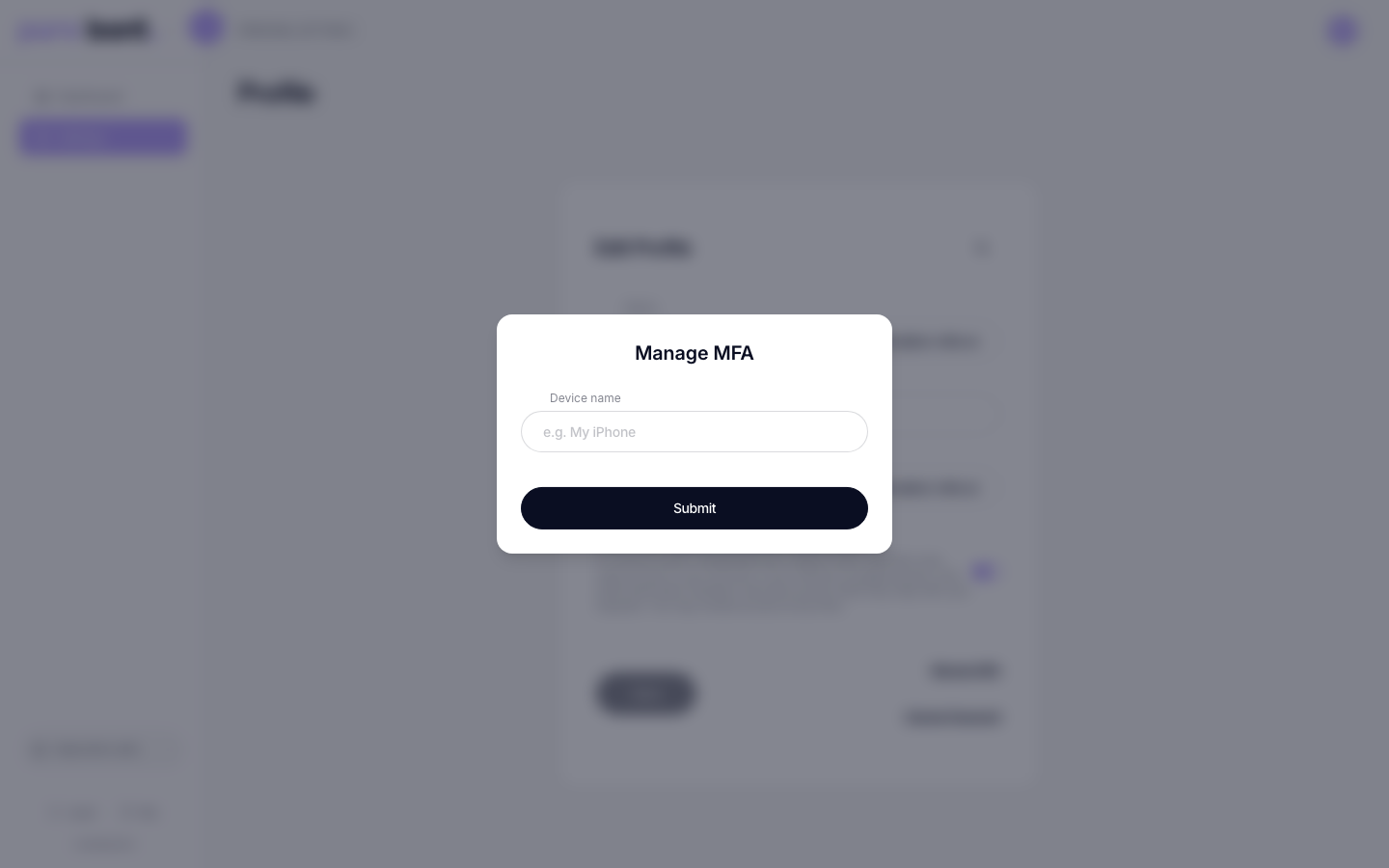
Click Register. The form asks for a Device name — something memorable
like iPhone 15 or Work Mac. Click Submit.
Step 4 · Scan the QR code and verify
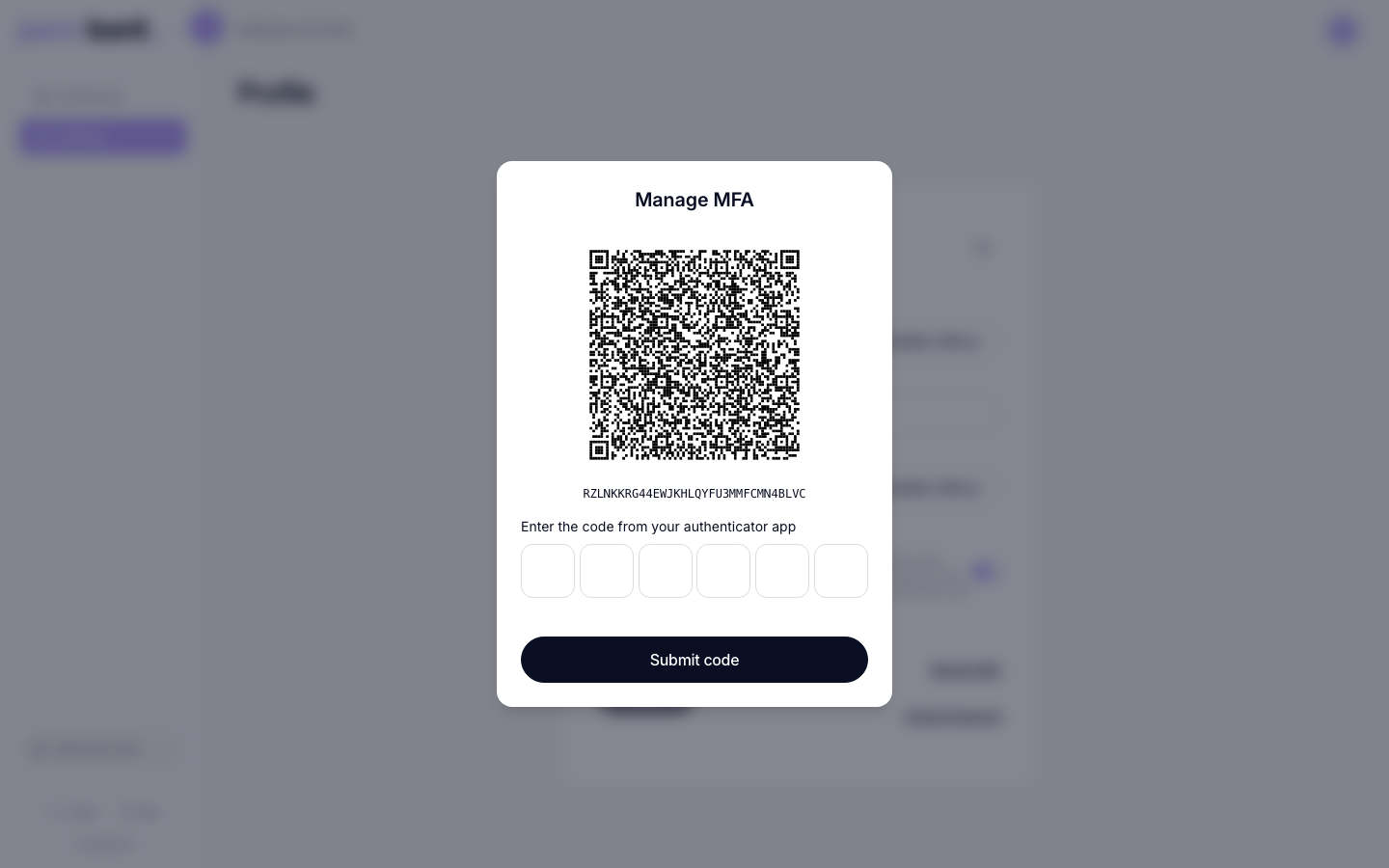
bont shows a QR code and a setup secret. Open your authenticator app, scan the QR, and enter the 6-digit code the app generates. Verifying once locks the factor in.
Managing factors later
Reopen Manage MFA any time. Each registered factor shows a status (Verified or Unverified) and a delete icon. Removing a factor takes effect immediately — make sure you still have another way to sign in before deleting your only one.
Troubleshooting
The code is rejected
TOTP codes are time-sensitive. Check that your phone's clock is set to "automatic" — a clock drift of more than 30 seconds breaks verification.
I lost my phone
Sign in from a trusted device (one where you ticked Remember this device), then delete the lost factor from Manage MFA and register a replacement. If you can't sign in at all, ask a workspace admin to clear MFA on your account.
I don't see Manage MFA
Single-sign-on accounts (Google, Microsoft) don't need bont MFA — the identity provider already challenges you. The button is hidden on those accounts on purpose.