
Inviting teammates
Bring teammates into your bont workspace — send invites by email, manage the pending list, and resend or revoke as needed.
Any workspace admin or owner can invite teammates. Invites go out by email; the invitee follows the link, picks Log in or Create account on the landing page, and is attached to the right workspace once they sign in or sign up with the invited address. The invitee side is covered in Accepting a workspace invitation.
Step 1 · Open Members settings
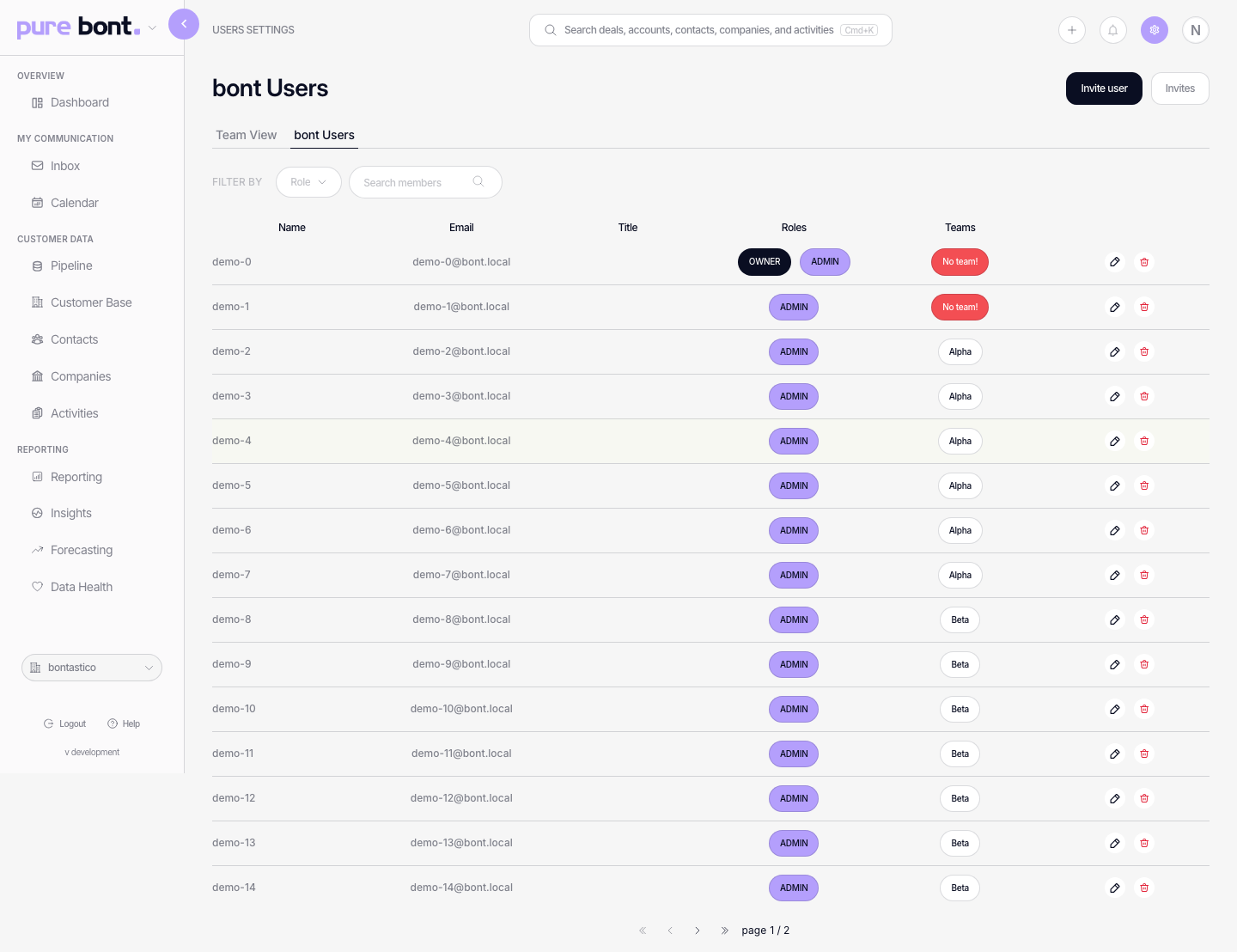
Make sure you're inside the right workspace, then open Settings → Members. The page lists every active user (the Members tab) and gives you an Invite user button in the top-right.
Step 2 · Send the invite
Click Invite user. Type one or more email addresses; press Enter or the
+ button after each one to push it onto the list. Pick a Role per
invitee (Member by default; admins and owners can promote to Admin).
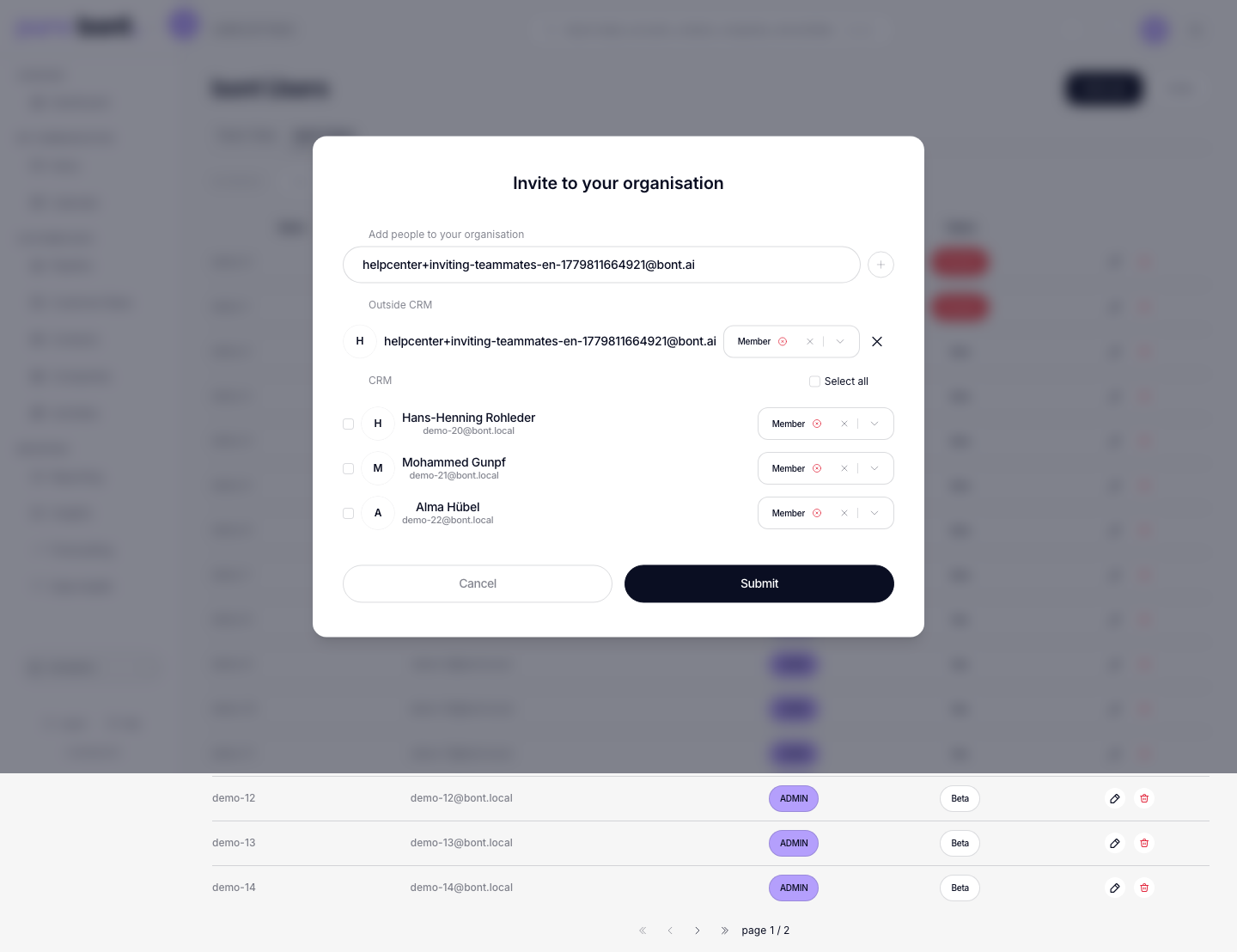
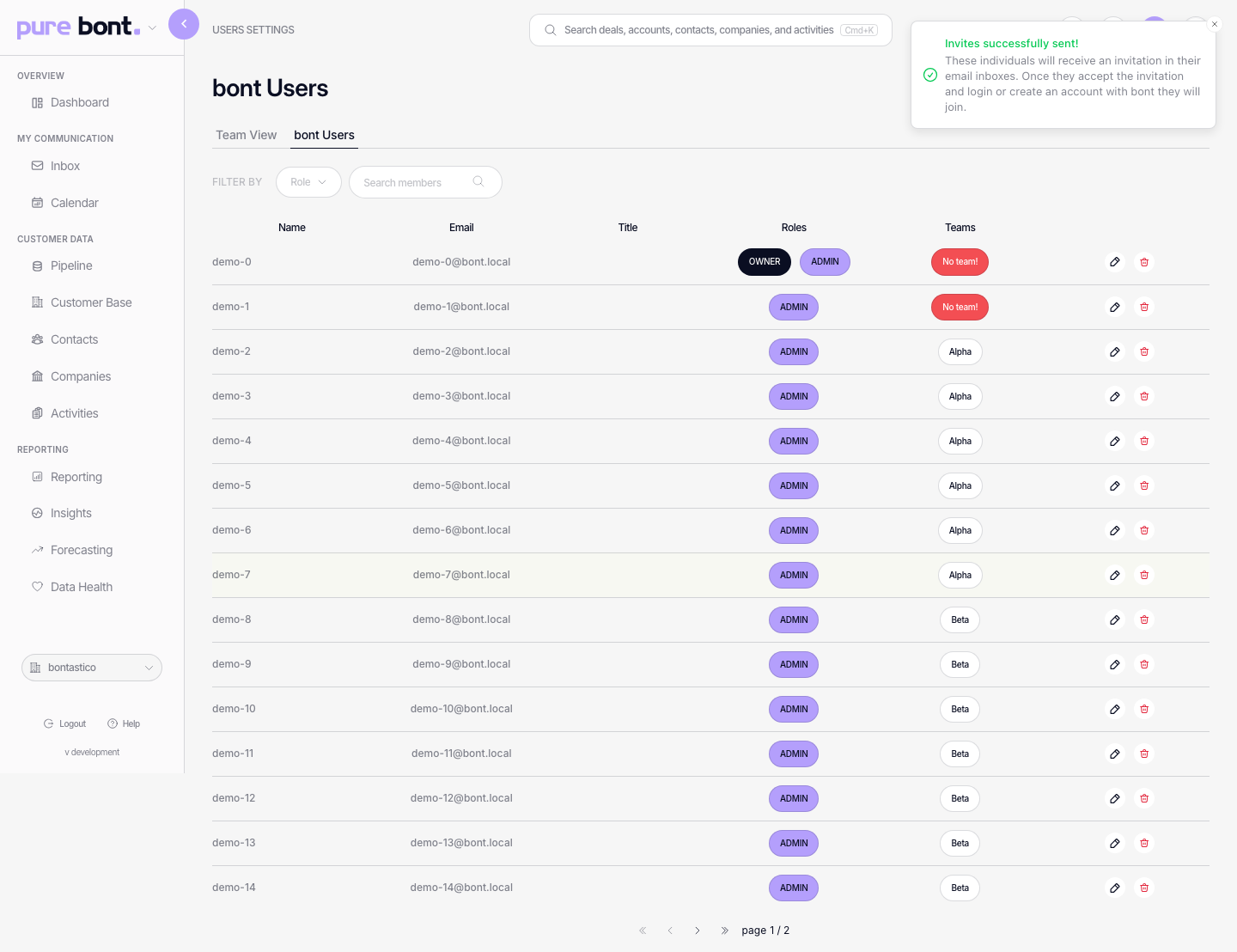
Click Submit. bont fires off the invite emails and updates the Invites tab with a Pending row per invitee.
Step 3 · Manage pending invites
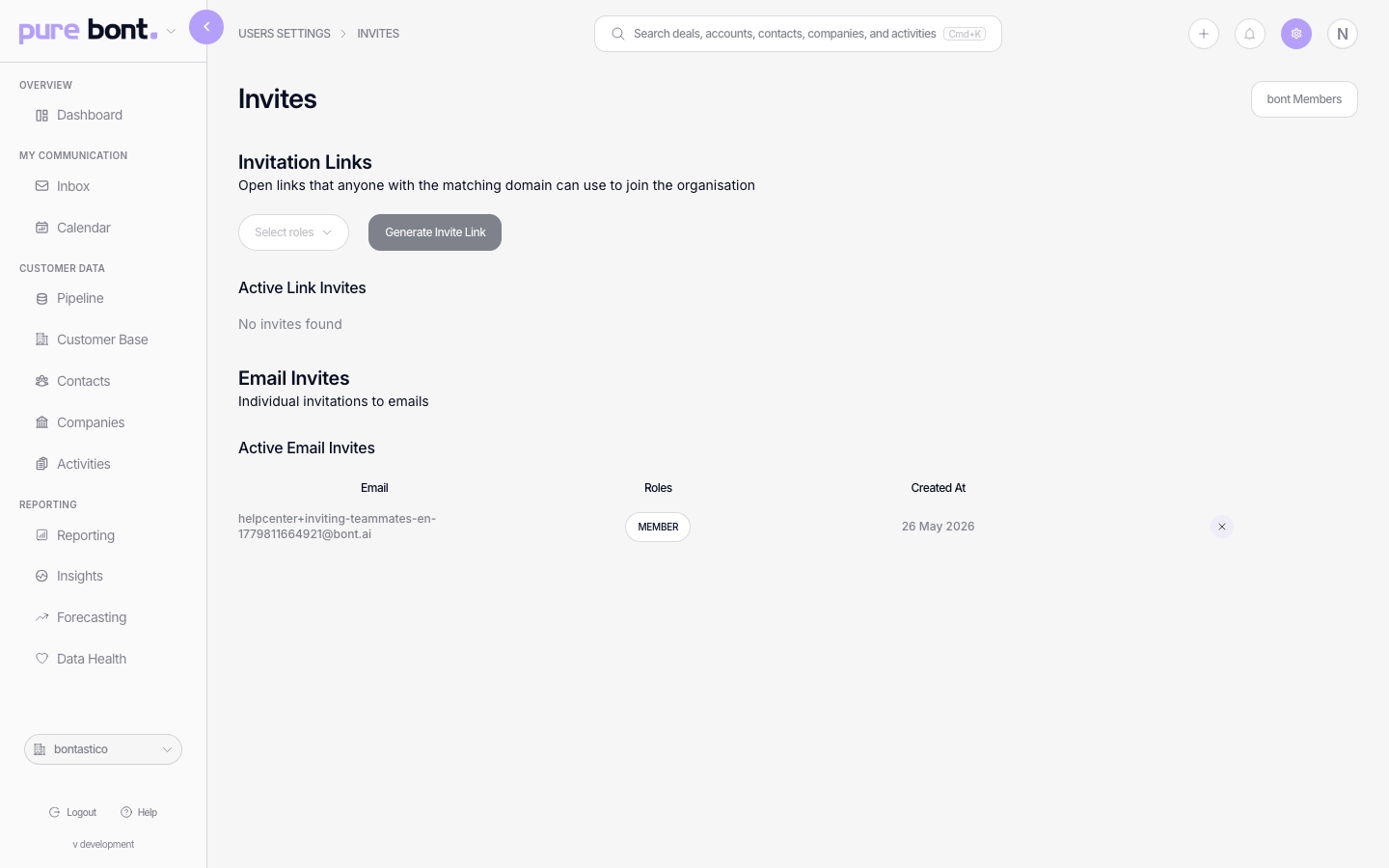
Switch to the Invites tab. Email invites are listed with the recipient address, role, and the time the invite was created. You also see a separate Invitation Links section where you can generate reusable links pinned to a domain — useful for bulk hires.
Resending or revoking
- Resend — open the row's action menu and pick Resend; bont issues a fresh link with a new expiry. Older links stop working.
- Revoke — pick the trash icon. Any unused link immediately stops working. The invitee receives no notification; if they were expecting it, send a fresh invite.
Roles at a glance
- Owner — billing, settings, members, all app data.
- Admin — settings and members; full app data access.
- Member — app data access; no settings or member-management rights.
- Custom roles — if the default three don't fit, admins can build roles with hand-picked permissions under Roles and access and assign them here like any other role.
See Removing a member or changing their role for editing roles after the fact.
Troubleshooting
The invitee says they never got the email
- Ask them to check spam and junk folders.
- Verify the address on the Invites tab — typos here mean the message hit nothing.
- Resend from the row's action menu.
- Tell their IT to allow mail from
mail.bont.ai.
I can't see the Members option in Settings
Member management is admin- or owner-only. If you only have the Member role, ask the workspace owner to invite the new teammate or promote your role first.