
Opening the deal sheet
Everything a single deal carries in one place — stage progression, activities timeline, products, competitors, signing contacts, files and metadata.
The deal sheet is the full picture of a single deal: where it is in the
pipeline, every conversation tied to it, which contacts are involved, which products are in
scope, and any files attached. Clicking a card on the Pipeline board (or a row in List view)
opens a quick-view drawer first — the deal sheet itself lives at
/base/{slug}/deals/{id} and you reach it from the drawer's Open
details link.
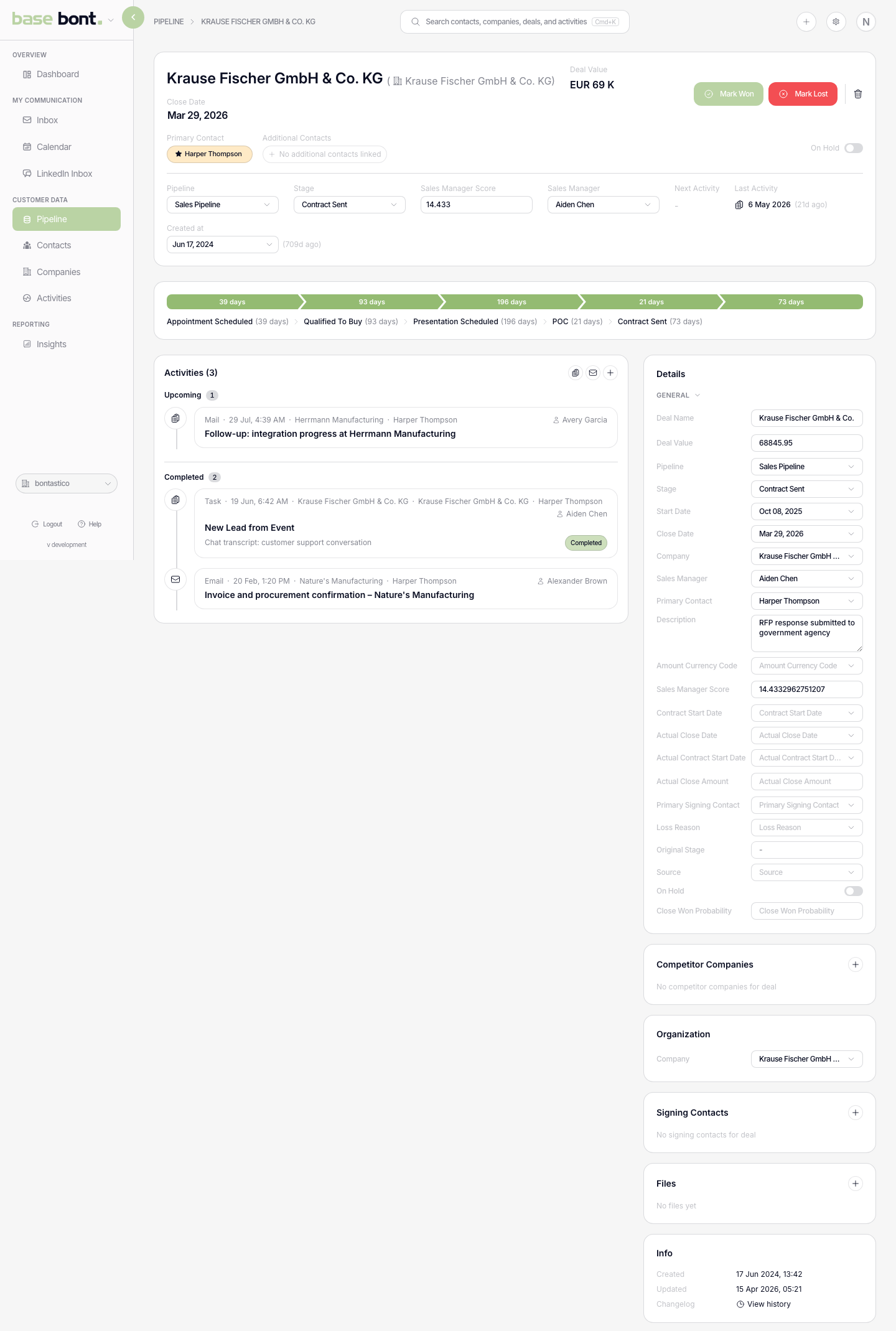
Header
- Deal name — inline-editable. Click to rename.
- Stage badge — current stage with a coloured chip.
- Deal owner — the rep responsible. Inline-edit from the sidebar.
- Last activity — relative timestamp of the most recent interaction; an at-a-glance temperature gauge.
- Actions — use the header action menu to edit, delete or Merge a duplicate deal. Merge lets you find the other record, compare standard and custom fields, and choose which deal remains primary.
Stage progression
A horizontal flow at the top of the left column shows every stage in the deal's pipeline, with the current stage highlighted. Click any stage chip to move the deal there — same behaviour as drag-and-drop on the board. If the destination is a closed-lost stage and your workspace has Loss Reason set to required (see CRM configuration: Loss Reasons), a modal asks for the reason before the move commits.
Activities feed
Below the stage flow, every activity tied to this deal — emails, calls, meetings, notes, stage changes — listed newest first. + Add activity at the top opens the same modal used everywhere else.
Right sidebar
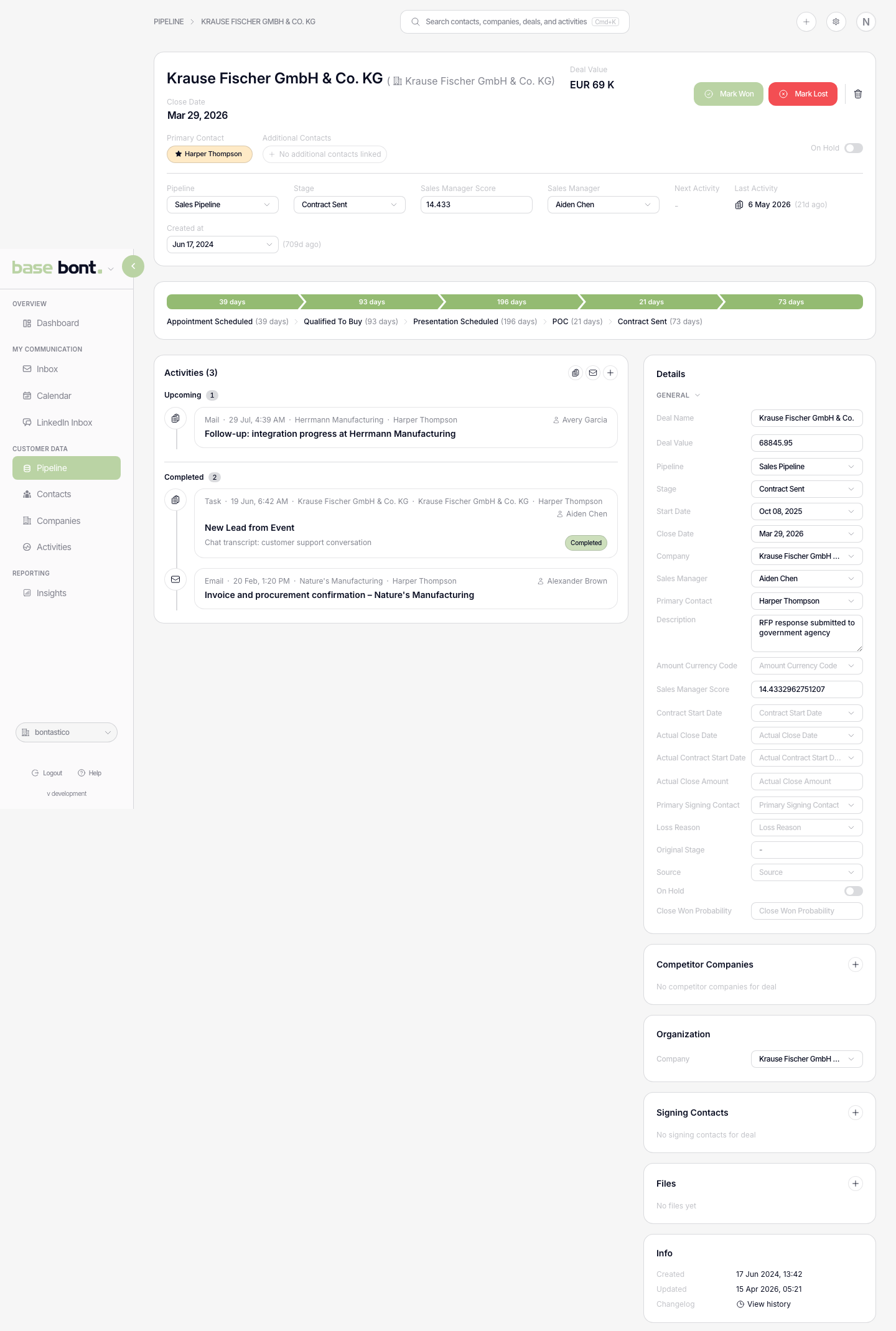
- Deal & Products — name, amount, close date, probability, custom fields, and any products attached. Add/remove products inline.
- Competitor Companies — other vendors involved in the deal. Lets pure bont track win/loss reasons against named competitors.
- Organization — the linked company with quick navigation to its profile.
- Signing Contacts — every contact involved in the deal with role and primary flag. Click to navigate.
- Files — attachments uploaded against the deal (proposals, contracts).
- Info — Source, Created, Updated, source tracking. Click to view the full activity log.
Products and line items
The Deal & Products card is also where you itemise what's being sold. Add a line item for each product: pick it from your product catalogue (see CRM configuration: Products), set a quantity and unit price, and apply an optional discount as a percentage or a fixed amount. For subscriptions, mark a line as recurring and set its interval. Each line shows its calculated amount in the deal's currency. Line items appear when they're enabled for your workspace — ask an admin if you don't see the option.
Commercial orders and documents
For a won deal, use Commercial Orders to record the delivery period, revenue, discounts, payment terms and products. Use Create document to generate a DOCX from a workspace template, review it and send it for secure signing. These actions appear only when the corresponding workspace feature is enabled.
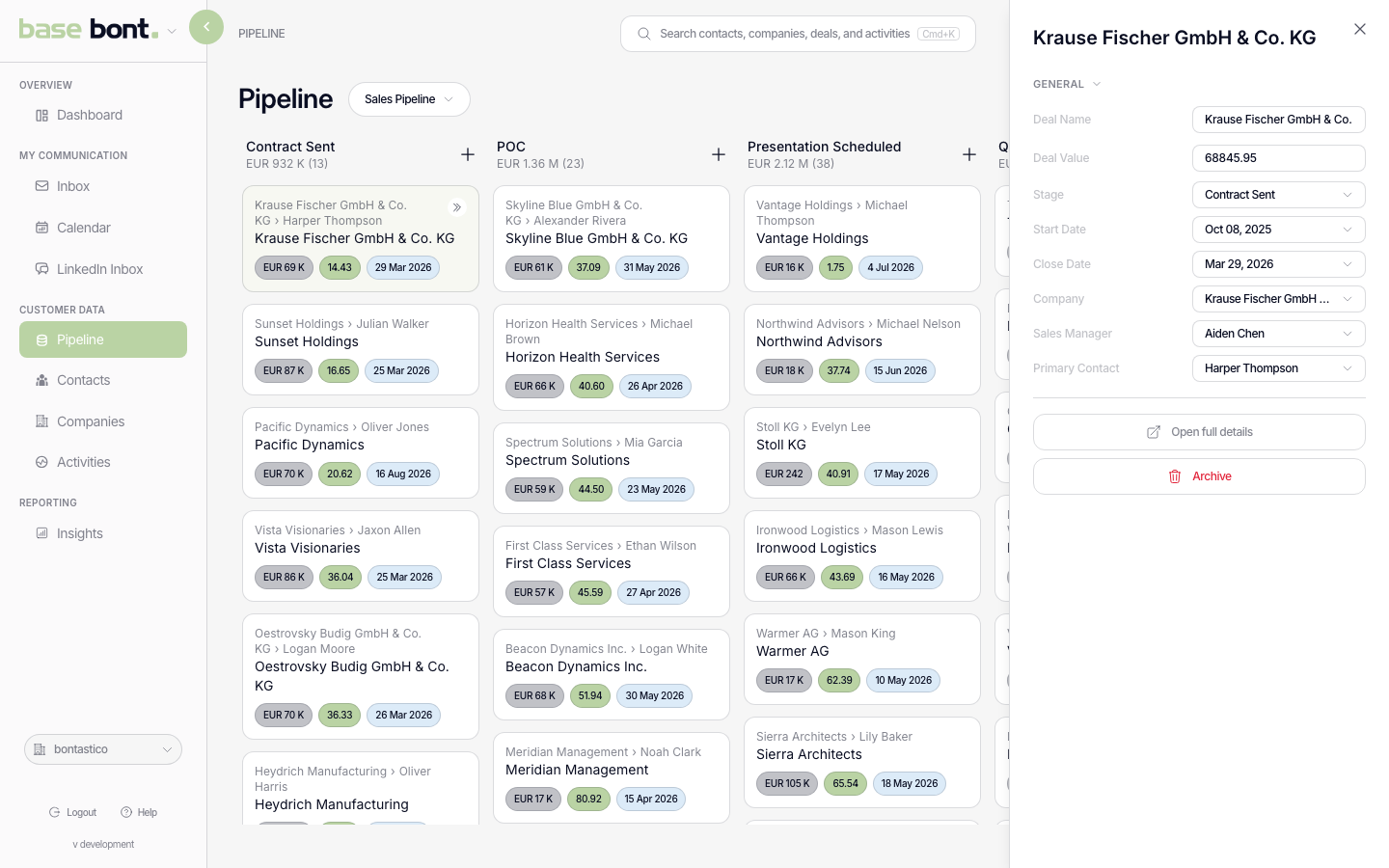
The quick view
The quick-view drawer is for triage from the board — you can read and inline-edit the most important fields without losing your place on the pipeline. When you actually need the activities feed and the full sidebar, open the deal sheet.
Tips
- On-hold — a deal flagged on-hold shows the red pause icon on its board card and in the deal sheet header. Use it when momentum stalls but the deal isn't dead. You can also set an On Hold Until date — the deal is released automatically when the date passes, so nothing stays parked forever.
- Last activity stale — if the indicator turns red, no one's touched the deal in a while; consider scheduling a Task as a follow-up.
- URL is shareable — copy the deal-sheet URL to send a teammate straight into a deal.