
Automations
Build rules that watch your CRM and act on their own — update a field, create or archive a record, send a notification or an email — when a record changes or a date arrives and your conditions are met.
Automations let your CRM act on its own. Each one is a rule with three parts: a trigger that watches your records, optional conditions that decide which records qualify, and one action it runs when they do. Use them to keep data tidy, prompt the right person at the right moment, and take the manual work out of stage changes, follow-ups and renewals.
Open it
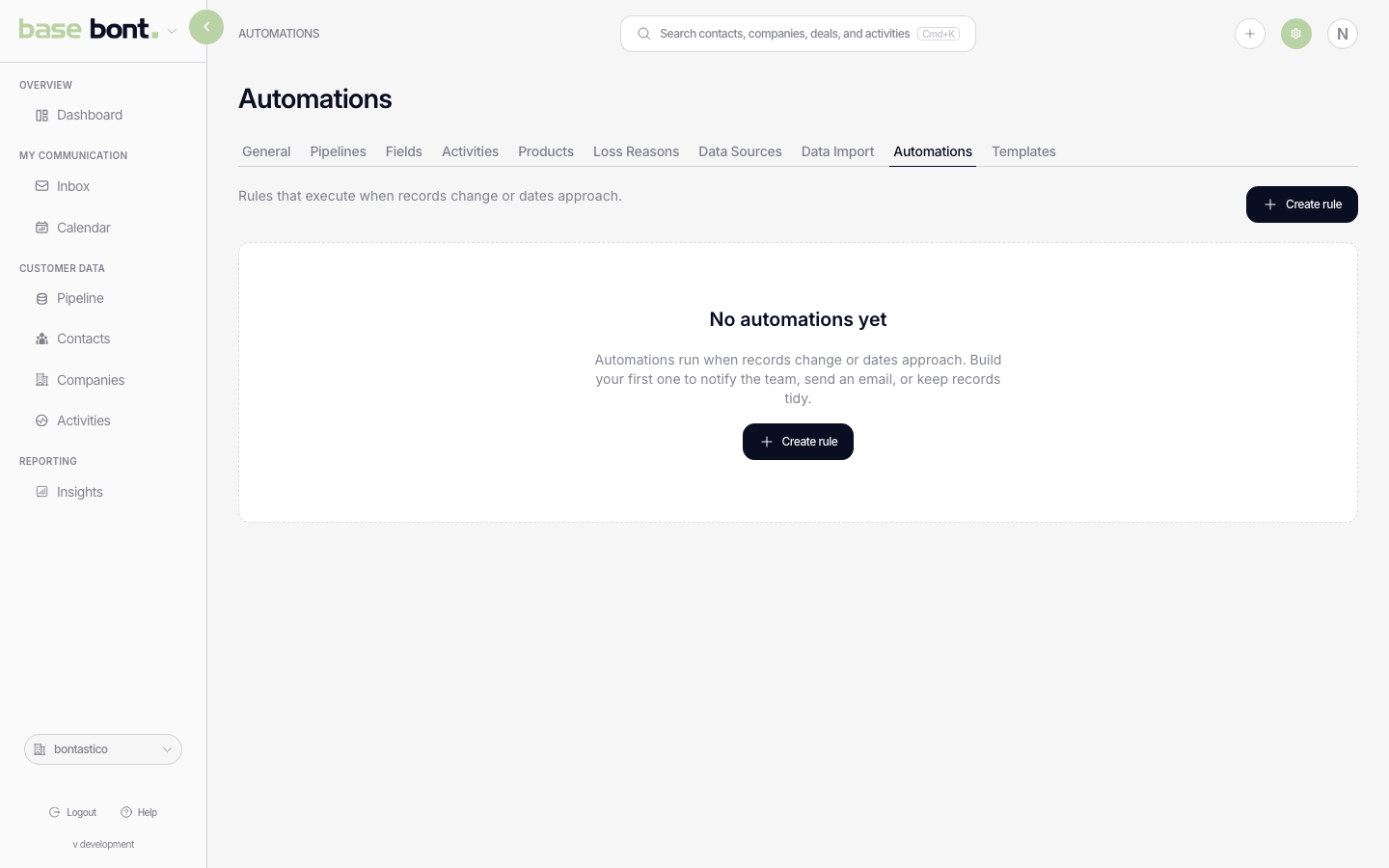
Settings → App Settings → CRM configuration → Automations. The page lists your rules — the ones your team built, plus system rules maintained by bont — each with an on/off toggle. Click + New automation to build one, or open a rule to edit it and watch it run.
How a rule is built
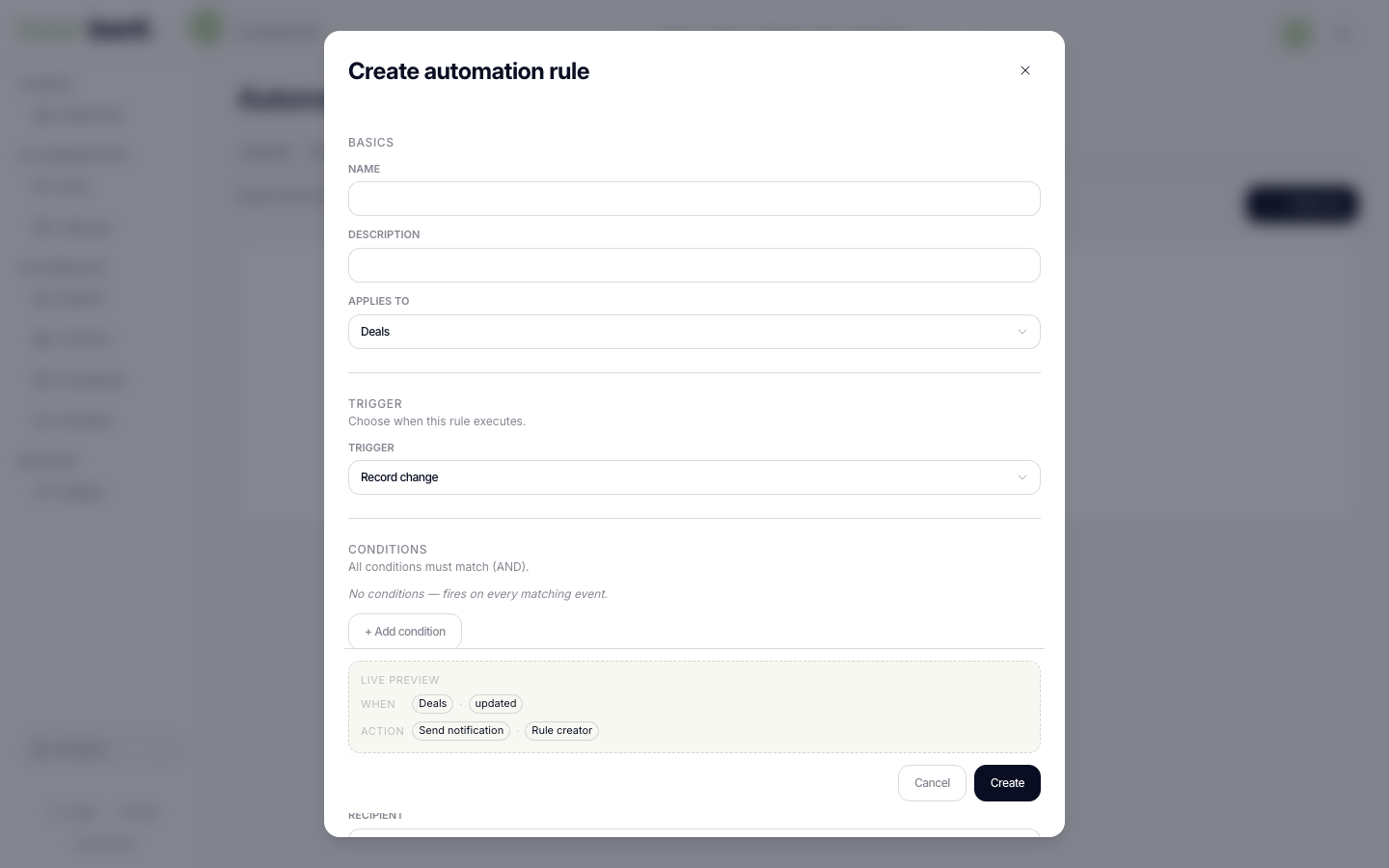
A rule has a name, an Applies to object, a trigger, optional conditions, and a single action. The Applies to object is chosen when you create the rule and can't be changed later — start a new rule if you need a different object. New rules are created switched off, so you can build and check a rule before it does anything.
Triggers: when a rule runs
A rule fires on one of two triggers.
Record change
Fires when a record of the chosen object is updated. The object can be Contacts, Companies, Deals, or Activities. An edit that doesn't actually change any value won't fire the rule, and creating or deleting a record doesn't fire a record-change rule — only edits to an existing record do. The action runs a moment after the change is saved, usually within about half a minute rather than instantly.
Date reached
Fires relative to a date field on the record. Pick the date field, then set how many days before, on, or after that date the rule should run. bont checks date-reached rules roughly every 15 minutes and fires once per record on the matching day. You can build them on these date fields:
- Deals — start date, close date, contract start date, actual close date, actual contract start date.
- Activities — due date, event timestamp.
- Contacts — birthday.
Companies have no date field, so date-reached rules aren't offered for them.
Conditions: which records qualify
Conditions filter the records a rule acts on. Each one compares a field to a value you enter. Add as many as you like — all of them must match (conditions combine with AND; there are no OR groups). Leave conditions empty and the rule fires on every change to the object. You can test standard fields, relations (owner, company, stage, pipeline, segment, source, subtype) and your own custom fields. Values are fixed values you type in — you can't compare one field to another.
The comparisons on offer depend on the field type:
- Text, URL, long text — equals, not equals, contains, does not contain, starts with, ends with, in list.
- Number — equals, not equals, greater than, less than, greater than or equal, less than or equal, percent change.
- Date — equals, not equals, greater than, less than, greater than or equal, less than or equal.
- Yes / No — equals, not equals.
- Dropdown, multi-select, relations — equals, not equals, in list.
Empty values: a record with no value in the field generally doesn't match a condition, so a blank field won't accidentally satisfy "contains" or "greater than". The exceptions are equals (when you're checking for empty), not equals, and does not contain, which do match an empty value.
Actions: what a rule does
A rule runs exactly one action when it fires:
- Update field — overwrite a field on the record that triggered the rule with a value you set.
- Create record — create a new Activity, Company, Contact or Deal and set whichever fields you need. Some objects need a minimum: an activity needs a title and type, a company or deal needs a name. The new record is attached to the same account as the trigger. Individual fields can be set to Same as trigger record, which copies the value from the record that fired the rule.
- Archive record — archive (soft-delete) the triggering record, with an optional reason.
- Send notification — send an in-app notification to the rule creator, the record owner, the person who triggered the change, or specific users. Write the message yourself and pull in record values with merge fields (below). This is what a brand-new rule does by default.
- Send email from user — send an email through a connected mailbox using one of your saved email templates (the template supplies the subject and body) plus an optional signature. The recipient can be a user role (creator, owner, or the person who triggered the change), a specific user, a field on the record that holds an email address, or an explicit address you type.
Relative due dates
Due dates on records an automation creates can be absolute or relative to the moment the rule fires: choose Absolute date to pin a specific day, or Relative to trigger to offset it by a number of days, business days, weeks or months. A relative due date follows the trigger, so an activity created after a call always lands the same distance from that call.
Merge fields in notification messages
In a notification message, drop in values from the triggering record with double braces —
{{deal.name}}, {{contact.first_name}}, and so on (object, then field). They
resolve when the notification is sent.
Advanced options
- Only execute on user-initiated changes (on by default) — skips changes made by sync jobs and other automations, so a rule reacts only to something a person actually did.
- Loop protection — an automation's own changes never trigger another automation, so rules can't cascade into a loop.
- The enabled toggle — a switched-off rule stays fully configured but doesn't run.
Who can edit automations
Any member can switch a rule on or off. Changing a rule's structure — its trigger, conditions, or action — needs admin or owner access. System rules (marked as maintained by bont) can be toggled on or off but not restructured. A Send email from user rule can only be edited by the person who created it, because it sends through their personal mailbox.
Watching a rule run
Open a rule to see two views:
- Execution history — every time the rule fired, with a status (Pending, In progress, Sent or Failed), when it was scheduled and completed, the number of attempts, and the record involved. Hover a failed run to see the error.
- Near misses — records from the last 7 days that hit the trigger but failed at least one condition, showing the exact clause that didn't match (the field, the comparison, the value you set, and the record's actual value). It answers "why didn't this fire?" and is the fastest way to tell whether a rule is too strict or too loose before you rely on it.
Tips
- Build it switched off, then test. Create the rule, check Near misses and a few real records, then enable it.
- A failed run isn't retried automatically. Fix the cause — for example a missing required field on a Create record action — and the rule runs again on the next matching change.
- Record change reacts to edits only. If you need something to happen as a record is created, reach for a date-reached rule instead.